

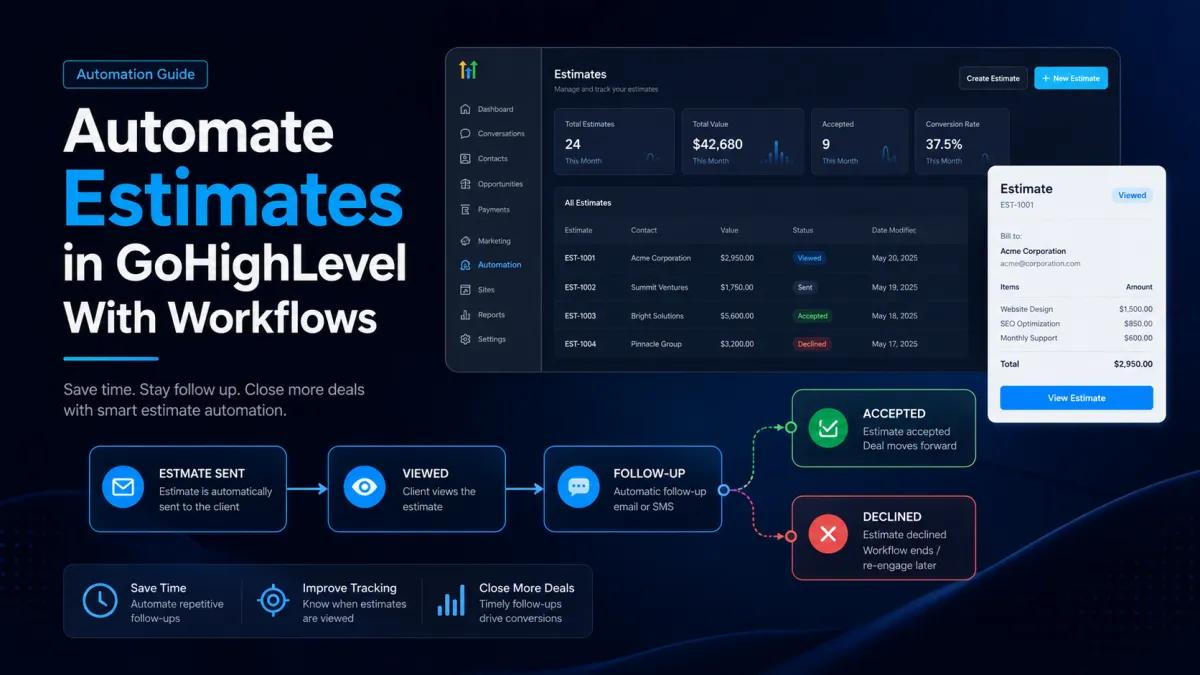
Automate Estimates in GoHighLevel
How to Automate Estimates in GoHighLevel With Workflows
Sending an estimate is often only the beginning of the sales process. The real challenge is what happens afterward: Did the prospect view it? Did they accept it? Are they still considering the proposal? Who should follow up, and when?
With GoHighLevel Estimates and Workflows, businesses can automate much of this process instead of relying on employees to remember every follow-up. HighLevel provides an Estimates workflow trigger that can respond to estimate events such as sent, viewed, accepted, and declined, giving businesses a practical way to build structured estimate automation.
What Are GoHighLevel Estimates?
GoHighLevel Estimates are designed to present prospective customers with pricing and service details before they commit to a purchase or project. They are particularly useful for service businesses that need customer approval before moving forward.
Instead of treating an estimate as a standalone document, businesses can connect estimate activity with their CRM and workflows. This makes it possible to respond differently depending on what happens after the estimate is created and delivered.
Why Automate Estimate Follow-Ups?
Manually managing estimates creates several problems. A salesperson may send an estimate and intend to follow up two days later, only to forget because another lead requires attention. Other prospects may receive inconsistent communication or fall through the cracks entirely.
GoHighLevel estimate automation helps create a repeatable process around these situations. Businesses can automate appropriate communications, internal notifications, and CRM actions based on estimate-related events.
The result is better consistency without requiring employees to manually monitor every estimate.
How GoHighLevel Workflows Fit Into the Estimate Process
The key component is the Estimates workflow trigger. It can activate a workflow based on estimate status and can be refined using filters such as Estimate Status, Estimate Value, and Estimate Template. For example, a workflow can be configured to respond when an estimate is viewed or declined, or only when an estimate exceeds a particular value.

This allows automation to be more specific than simply saying, “An estimate exists.”
A basic process might look like this:
Estimate sent → status-based trigger → conditions → follow-up or internal action → additional follow-up based on the prospect's response
The important point is that the workflow should reflect the prospect's actual situation rather than sending the same message to everyone.
How to Build an Estimate Workflow in GoHighLevel
1. Define the outcome first
Before creating the workflow, decide what you want the automation to accomplish. For example, you might want to follow up with prospects who have viewed an estimate but have not accepted it.
This is better than creating a workflow simply because automation is available.
2. Create or open a workflow
Go to the Workflows area in your GoHighLevel sub-account and create a new workflow or edit an existing one.
Add the Estimates trigger. From there, configure the relevant filters. The available estimate filters include status, value, and template.
3. Choose the appropriate estimate event
Suppose your objective is to follow up after a prospect views an estimate. Configure the trigger around the Viewed estimate status.
Alternatively, an accepted-estimate workflow can be used for internal handoffs, while a declined-estimate workflow can initiate a different follow-up process.

4. Add conditions and actions
After the trigger, add the actions that make sense for that situation. For example, a viewed estimate could lead to a personalized email or SMS follow-up, followed by a wait period and another conditional step.
An accepted estimate may require an internal notification or an opportunity-related action instead of another sales message.
HighLevel also supports a Send Estimate workflow action, which can generate an estimate from a selected template and deliver it by email, text, or both when the workflow reaches that action.
5. Test before activating

Test the workflow with controlled contacts and verify that the correct estimate, communication channel, conditions, and timing are working as expected. This is especially important when an automation can send customer-facing messages.
Real-World Example: Automating Estimates for a Contractor
Consider a remodeling company that regularly sends project estimates.
A salesperson creates and sends an estimate to a qualified prospect. Instead of adding a manual reminder to a calendar, the company uses an estimate workflow.
When the estimate is viewed, the workflow can begin an appropriate follow-up sequence. After a reasonable waiting period, the business can send another helpful message. If the estimate is accepted, a separate workflow path can notify the appropriate team or continue the sales process. If it is declined, the business can use a different message designed to understand the objection or preserve the relationship.
This creates different automation paths for different customer behaviors rather than treating every prospect identically.
Build Smarter Estimate Follow-Ups
Effective GoHighLevel estimate follow-up is about timing and relevance.
Avoid sending several messages immediately after an estimate is delivered. Give the prospect enough time to review the pricing and details. Then use conditions to distinguish between someone who has viewed the estimate and someone who has already accepted or declined it.
Personalization also matters. A message referencing the project or service is generally more useful than a generic reminder.
For larger estimates, businesses can also use the Estimate Value filter to create different workflows for different deal sizes. HighLevel supports value-based operators such as greater than, less than, equals, and greater than or equal to.

Best Practices for Estimate Automation
Keep follow-ups useful rather than excessive.
Use estimate status to determine the customer's next automation path.
Use conditions to prevent irrelevant messages.
Keep internal notifications limited to events that require team attention.
Use estimate templates consistently when automating estimate delivery.
Test workflows before publishing them.
Review workflow performance and adjust timing or conditions when necessary.
Common Mistakes to Avoid
One common mistake is building a single automation that sends identical messages regardless of estimate status. An accepted estimate should not receive the same follow-up as an untouched or declined estimate.
Another mistake is using too many actions without a clear objective. More automation does not automatically mean better automation. The workflow should support the sales process rather than make it harder to understand.
Finally, do not confuse estimate automation with invoice or payment automation. Estimates, invoices, opportunities, and other CRM processes can work together, but they serve different purposes and should be automated according to the actual stage of the customer journey.
Frequently Asked Questions
Can GoHighLevel automate estimate follow-ups?
Yes. GoHighLevel can use the Estimates workflow trigger to start automation based on estimate-related events and statuses. You can then add appropriate workflow actions, conditions, waits, and communications to create a structured follow-up process.
What estimate events can trigger a GoHighLevel Workflow?
The Estimates workflow trigger supports estimate statuses such as Sent, Viewed, Accepted, and Declined. This allows businesses to create different automation paths depending on what happens to an estimate.
Can I send an estimate automatically through a GoHighLevel Workflow?
Yes. GoHighLevel includes a Send Estimate workflow action that can create an estimate using a selected template and send it through email, SMS, or both, depending on the available configuration.
Can I create different workflows for accepted and declined estimates?
Yes. You can use the estimate status to create different automation paths. For example, an accepted estimate could trigger an internal handoff, while a declined estimate could start a different follow-up sequence.
Can I use the estimate value in workflow automation?
Yes. The Estimates trigger supports filtering based on Estimate Value. This can help businesses create different automation processes for estimates based on their monetary value.
How should businesses time GoHighLevel estimate follow-ups?
Avoid sending multiple messages immediately. Give prospects reasonable time to review the estimate, then use workflow waits and conditions to create a more natural follow-up sequence. The appropriate timing depends on the type of service, deal size, and typical sales cycle.
Conclusion
The real value of GoHighLevel Estimates is not simply creating and sending pricing documents. When combined with GoHighLevel Workflows, estimate activity can become part of a consistent CRM automation process.
By responding appropriately to estimate events, applying conditions, timing follow-ups carefully, and separating accepted, viewed, and declined scenarios, businesses can reduce manual work while keeping prospects engaged.
The goal of GoHighLevel estimate automation is simple: make sure the right action happens at the right time, without depending on someone to remember every estimate manually.
Need Expert Help with GoHighLevel?
New to GoHighLevel and ready to get started? Buy your GoHighLevel account here and launch with confidence.
Already know what you need and want our team to handle everything, from complete setup and customization to funnels, workflows, automations, CRM, and pipelines? 5Click here.



