

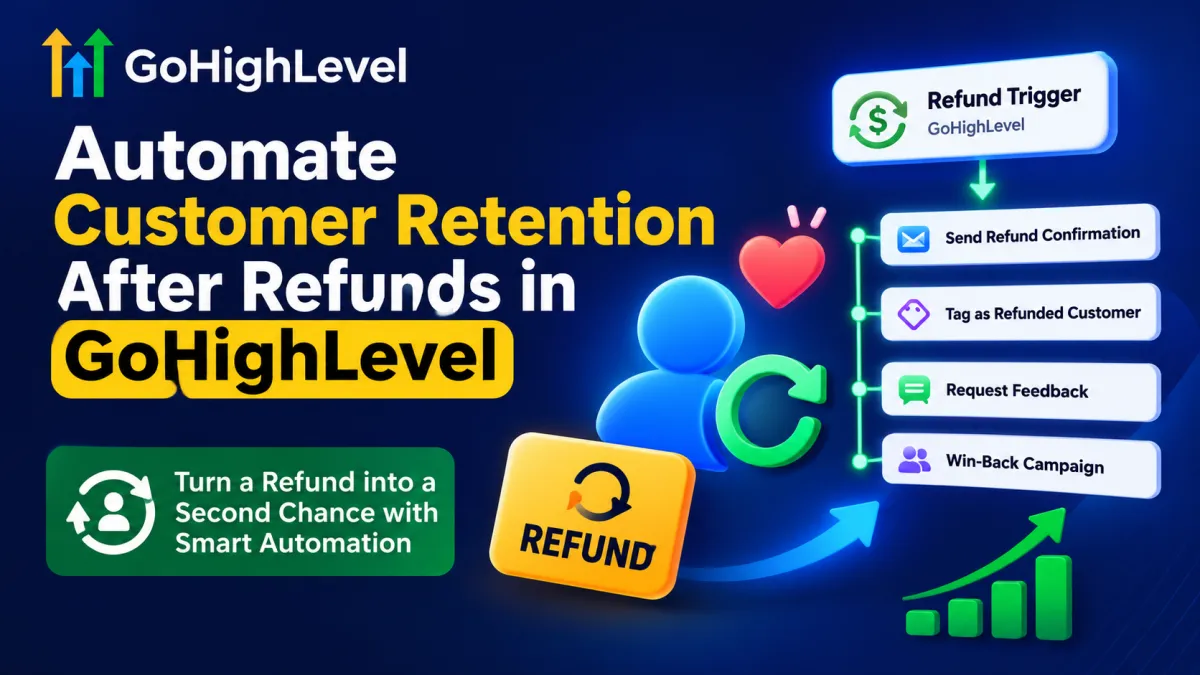
Automate Customer Retention After Refunds in GoHighLevel
How to Automate Customer Retention After a Refund Using the Refund Trigger in GoHighLevel
Customer refunds do not always mean the end of a customer relationship. In many cases, a customer requests a refund because of a specific issue, misunderstanding, poor timing, or an unsatisfactory experience. If you simply process the refund and end all communication, you may lose an opportunity to rebuild trust and bring that customer back in the future.
With the Refund Trigger in GoHighLevel, businesses can automate follow-up actions immediately after a refund is processed. This allows you to create a structured customer retention process that keeps communication timely, personalized, and consistent.
In this guide, we'll explain how to use the Refund Trigger in GoHighLevel to automate customer retention and create a better post-refund customer experience.
What Is the Refund Trigger in GoHighLevel?
The Refund Trigger is a workflow trigger that starts an automation when a refund-related event occurs. Once the trigger is activated, GoHighLevel can automatically perform actions based on the workflow you have created.
For example, after a customer receives a refund, you can automatically:
Send a confirmation email or SMS
Tag the customer as refunded
Notify your support or retention team
Create an internal follow-up task
Ask for feedback about the refund or customer experience
Move the contact to a dedicated pipeline stage
Wait for a specific period before sending a win-back offer
Add the customer to a long-term re-engagement campaign
Instead of manually tracking every refunded customer, the Refund Trigger helps your team build an automated system that responds consistently.
Why Customer Retention After a Refund Matters
A refund may indicate that a sale did not work out, but it does not necessarily mean the customer will never purchase from you again.
The way you communicate after the refund can have a major impact on how the customer remembers your business. A professional and helpful follow-up can show that you care about the customer's experience even after receiving their money back.
An automated retention workflow can help you:
Maintain a Positive Customer Relationship
A simple follow-up message can make the experience feel more professional. You can confirm that the refund has been processed and let the customer know that your team is available if they need additional assistance.
Understand Why Customers Leave
You can automatically send a feedback request after the refund. This helps you identify common problems with your product, service, onboarding process, pricing, or customer experience.
Create Win-Back Opportunities
Not every customer is ready to buy again immediately. By tagging refunded customers and placing them into an appropriate follow-up sequence, you can reconnect with them later when the timing is better.
Reduce Manual Work
Without automation, your team may need to manually identify refunded customers, update their records, and schedule follow-ups. The Refund Trigger can automatically begin this process.
How to Set Up the Refund Trigger Workflow in GoHighLevel
Here is a simple way to build an automated post-refund retention workflow.
Step 1: Create a New Workflow
Go to the Automation section in your GoHighLevel account and create a new workflow.
You can start with a blank workflow so you have complete control over the customer journey.
Give the workflow a clear name, such as:
Refund Customer Retention Workflow
Using descriptive workflow names makes it easier for your team to manage automations as your account grows.
Step 2: Add the Refund Trigger
Click Add New Workflow Trigger and select the Refund Trigger.

Configure the available trigger settings based on the refund events you want the workflow to monitor.
Once a qualifying refund occurs, the contact can automatically enter your workflow.
This is the starting point for your automated customer retention process.
Step 3: Add a Tag to the Customer
After the trigger, add an action to apply a tag such as:
Refunded Customer
You can also use more specific tags depending on your business, such as:
Product Refund
Service Refund
Subscription Refunded
Refund Follow-Up Needed
Win-Back Opportunity
Tags make it easier to segment refunded customers later. You can use these segments for Smart Lists, reporting, campaigns, and future workflows.

Step 4: Send a Professional Refund Follow-Up
Next, send an automated email or SMS confirming the refund and maintaining a positive relationship.
For example:
Hi {{contact.first_name}}, your refund has been processed successfully. We're sorry that your experience did not meet your expectations. We appreciate your business and would love to understand how we could improve.
The goal of this message should not always be to immediately sell to the customer again. First, focus on providing reassurance and showing that you value their feedback.
You can personalize messages using contact information and custom values available in your GoHighLevel account.

Step 5: Ask for Customer Feedback
After confirming the refund, you can add a Wait step before sending a feedback request.
For example, wait one or two days and then send a message asking:
“We'd appreciate your feedback. What was the main reason you decided to request a refund?”
You can direct the customer to a GoHighLevel survey or form.
This information can help your business discover patterns behind refunds. If multiple customers mention the same problem, you may identify an issue that needs to be fixed.
You can also use different automation paths based on customer responses when appropriate.
Step 6: Create an Internal Follow-Up Task
Some refunded customers may require personal attention.
You can automatically create a task for a team member, such as:
Review refunded customer and identify retention opportunity.
Your retention or support team can then review the customer's previous conversations, purchases, notes, and feedback.
This creates a combination of automation and human follow-up, which can be especially useful for high-value customers.

Step 7: Move the Customer Into a Retention Pipeline
If you use opportunities in GoHighLevel, you can create or update an opportunity after a refund.
For example, your pipeline stages could include:
Refund Processed
Feedback Requested
Feedback Received
Retention Review
Win-Back Opportunity
Recovered Customer
No Further Action
This gives your team a clear view of customers who may still have potential for future business.
Step 8: Create a Delayed Win-Back Campaign
Timing is important. Immediately sending a promotional offer after a refund may create a negative experience.
Instead, you can add a wait period before starting a re-engagement campaign.
For example, wait 30 days before sending a helpful message, educational content, or a personalized offer.
Your message could focus on changes or improvements rather than simply pushing another sale.
For example:
“Since we last spoke, we've made improvements based on customer feedback. We wanted to share what's new in case you'd like to take another look.”
This approach can feel more relevant and respectful.
Best Practices for Automating Customer Retention After a Refund
When building your workflow, keep these best practices in mind:
Confirm the refund clearly and professionally.
Avoid sending aggressive sales messages immediately after a refund.
Use tags to properly segment refunded customers.
Ask for feedback to understand the reason behind refunds.
Create internal tasks for high-value or sensitive cases.
Use wait periods before starting win-back campaigns.
Personalize messages whenever possible.
Monitor workflow performance and customer responses.
Review common refund reasons and use the data to improve your business.
Conclusion
The Refund Trigger in GoHighLevel gives businesses an opportunity to turn a refund event into the beginning of a structured customer retention process.
By automatically tagging refunded customers, sending follow-up messages, collecting feedback, creating internal tasks, and launching delayed win-back campaigns, you can manage the entire process with less manual work.
A refund does not always mean a lost customer forever. With the right automation and communication strategy, you can learn from the customer's experience, protect the relationship, and create opportunities for future engagement.
Using the Refund Trigger in GoHighLevel allows you to build a more organized, responsive, and customer-focused retention system after every refund.
Frequent Ask Questions
1. What is the Refund Trigger in GoHighLevel?
The Refund Trigger is a workflow trigger that can start an automation when a qualifying refund event occurs, allowing you to automate actions and follow-ups.
2. Can I automatically tag customers after a refund?
Yes. You can add an action in your workflow to automatically apply tags such as Refunded Customer or Refund Follow-Up Needed.
3. Can I send an automated email after a customer receives a refund?
Yes. You can use the Refund Trigger to start a workflow and send an automated refund confirmation or customer follow-up email.
4. How can I use refunded customers for a win-back campaign?
You can tag and segment refunded customers, add a wait period, and later send personalized re-engagement messages or offers through a dedicated workflow.
5. Should I immediately send a promotional offer after a refund?
Usually, it is better to first confirm the refund and understand the customer's experience. A delayed and relevant follow-up may provide a better opportunity to rebuild trust.
Need Expert Help with GoHighLevel?
New to GoHighLevel and ready to get started? Buy your GoHighLevel account here and launch with confidence.
Already know what you need and want our team to handle everything, from complete setup and customization to funnels, workflows, automations, CRM, and pipelines? 5 Click here.



