

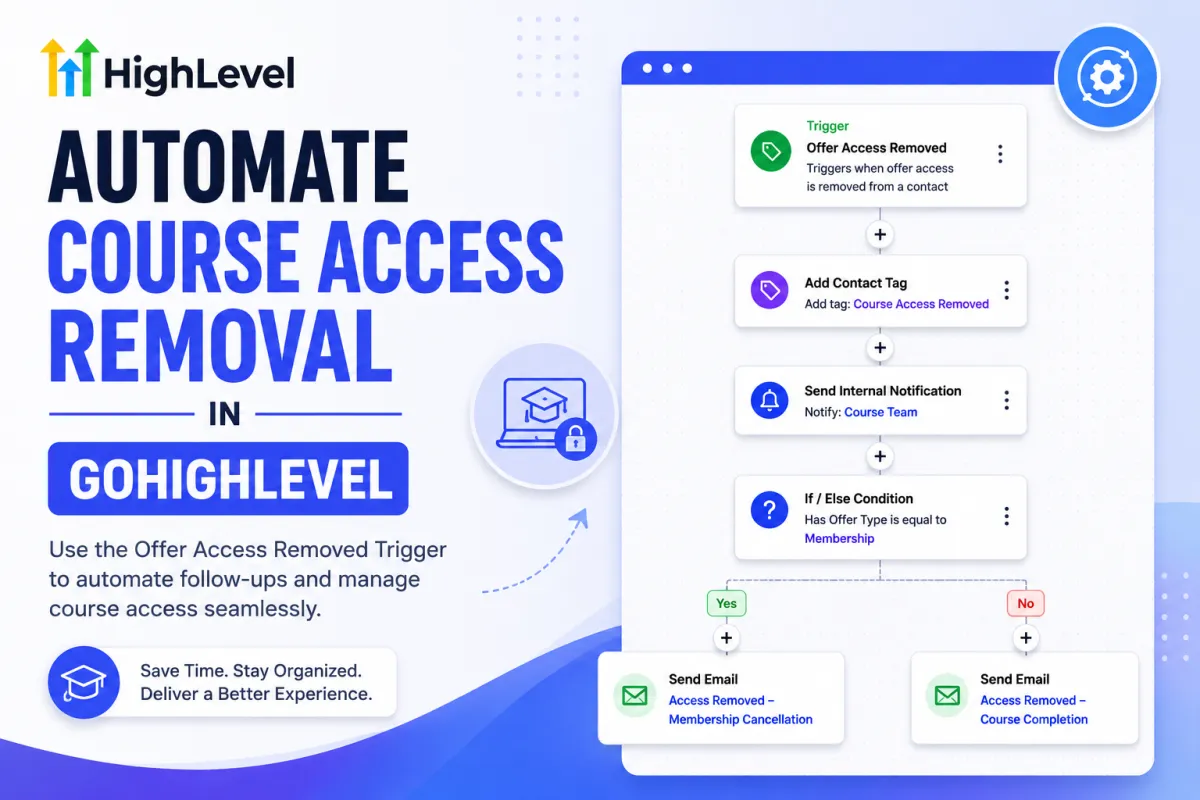
How to Automate Course Access Removal in GoHighLevel
How to Manage Course Access Automatically When an Offer Is Removed Using the Offer Access Removed Trigger in GoHighLevel
Managing course access manually can become difficult when a business sells online courses, memberships, or training programs through GoHighLevel. When a student no longer has access to an offer, someone may need to manually remove access, update records, notify the student, or perform additional follow-up tasks.
GoHighLevel makes this process easier with the Offer Access Removed workflow trigger. This trigger allows businesses to automatically start a workflow when access to a specific offer is removed from a contact.
By connecting this trigger with workflow actions, businesses can keep course access, CRM records, notifications, and follow-up processes more organized.
What Is the Offer Access Removed Trigger in GoHighLevel?
The Offer Access Removed trigger starts a workflow when a contact loses access to an offer.
An offer can represent access to a course, membership, training program, or another gated resource. When that access is removed, the workflow can automatically perform additional actions based on the business's requirements.
Instead of relying on someone to notice that a student's access has changed, the workflow can respond immediately to the access-removal event.
This is particularly useful for businesses that manage multiple courses, memberships, or student accounts.
Why Automate Course Access Changes?
Manually managing course access can create unnecessary administrative work.
For example, a student may cancel a membership, reach the end of a program, change plans, or have access removed for another reason. If the business manages these changes manually, it can be easy to forget an important follow-up action.
GoHighLevel course access automation can help create a consistent process whenever access is removed.
Depending on the business setup, automation can be used to:
Update contact information or tags
Notify internal team members
Send an appropriate email or SMS
Create a task for the team
Update an opportunity or CRM process
Start a separate follow-up sequence
Remove the contact from another workflow or communication process
The exact actions should depend on what happens to the customer after their access is removed.
How the Offer Access Removed Trigger Works
The main component of this automation is the Offer Access Removed trigger.
When a contact's access to an offer is removed, GoHighLevel can use that event to start the workflow.
A simple process might look like this:
Offer access removed → workflow trigger → conditions → CRM or communication actions → follow-up process
This means the business does not have to manually monitor every student's access status.
The workflow can respond to the event and perform the actions that have been configured.
How to Build an Offer Access Removed Workflow in GoHighLevel
1. Define What Should Happen After Access Is Removed
Before creating the workflow, decide what the business needs to do when a contact loses course or offer access.
For example, you may want to notify the internal team, add a specific tag, or send a confirmation email to the student.
Defining the desired outcome first helps prevent unnecessary workflow actions.
2. Create or Open a Workflow
Go to the Workflows section in your GoHighLevel sub-account.
Create a new workflow or open an existing workflow where you want to manage the access-removal process.
Add the Offer Access Removed trigger as the workflow's starting point.

3. Configure the Trigger
After adding the trigger, configure it according to the offer or access scenario you want to automate.
If the workflow is intended for a particular course or membership offer, make sure the trigger configuration matches the appropriate offer.
This helps prevent unrelated access-removal events from entering the same workflow.
4. Add Conditions and Actions
Once the trigger is configured, add the actions that should happen after access is removed.
For example, the workflow could add a Course Access Removed tag and then send an internal notification to the appropriate team member.

Another setup could send the student a confirmation email explaining that their access has been removed and providing information about what they can do next.
You can also use conditions to create different paths based on contact information, offer details, or other CRM data available in the workflow.

5. Add Appropriate Follow-Up
Not every access-removal event requires the same response.
For example, a membership cancellation may require a retention campaign, while the natural completion of a course may simply require a completion message.
Use Wait steps and conditional logic when a delayed follow-up makes sense.

The goal is to make the workflow respond appropriately rather than immediately sending multiple messages.
6. Test the Workflow Before Publishing
Before activating the workflow, test the process with a controlled contact.
Verify that the correct offer access is removed, the workflow starts as expected, and each action performs correctly.
Pay particular attention to customer-facing emails and SMS messages because incorrect conditions could result in an inappropriate communication.
Real-World Example: Automating Course Access Removal
Consider an online education business that sells a six-month training program.
A student completes the program and their access to the offer is removed. Instead of requiring an employee to manually update the student's CRM record, the business uses the Offer Access Removed trigger.
When the access-removal event occurs, the workflow can automatically add a relevant tag and notify the internal team.
The workflow could then send a personalized email thanking the student for completing the program and explaining what happens next.
If the business also offers an advanced course, another workflow path could introduce that next program at an appropriate time.
This creates a structured process around the end of the student's access instead of treating access removal as an isolated administrative task.
Automate Different Scenarios Carefully
Not every contact who loses access should receive the same follow-up.
A customer might lose access because:
Their membership ended.
Their subscription was canceled.
Their course access was intentionally removed.
They completed a program.
Their access was changed as part of a plan upgrade or downgrade.
These situations can require different automation.
For example, a canceled membership could trigger a retention-focused process, while a completed course could trigger a completion or upsell sequence.
Using conditions and separate workflow paths can help businesses keep these scenarios organized.
Best Practices for Offer Access Automation
Define the purpose of the workflow before adding actions.
Use the Offer Access Removed trigger specifically for access-removal scenarios.
Keep customer-facing messages relevant to the reason for the access change.
Use tags to make important CRM states easier to identify.
Add internal notifications only when team action is actually required.
Use wait steps when follow-up should not happen immediately.
Test the workflow with controlled contacts before publishing it.
Review the workflow regularly as courses, offers, and membership structures change.
Common Mistakes to Avoid
One common mistake is sending the same message to every contact whose access is removed. The reason for access removal can vary, so the follow-up should reflect the customer's actual situation whenever possible.
Another mistake is adding too many actions without a clear purpose. A workflow should simplify the process rather than make it difficult for the team to understand what is happening.
Businesses should also avoid confusing offer access removal with completely removing a contact from the CRM. Losing access to a course or offer does not necessarily mean the contact should be deleted or removed from every marketing and communication process.
Finally, avoid creating overlapping workflows that respond to the same access change unless there is a clear reason for doing so. Multiple automations can create duplicate notifications or customer messages.
Frequently Asked Questions
What does the Offer Access Removed trigger do in GoHighLevel?
The Offer Access Removed trigger starts a workflow when a contact's access to an offer is removed. This allows businesses to automate actions that should happen after the access change.
Can I automate course access removal in GoHighLevel?
Yes. The Offer Access Removed trigger can be used as part of a workflow to automate processes that should occur after a contact loses access to an offer, such as CRM updates, notifications, and follow-up communication.
What can I do after the Offer Access Removed trigger fires?
You can build the workflow around the actions available in your GoHighLevel account, such as adding tags, sending communications, creating tasks, notifying team members, and using conditional workflow logic.
Can I send an email after course access is removed?
Yes. You can add an email action after the trigger if an email is appropriate for the situation. For example, an education business could send a confirmation or next-steps message after access is removed.
Should every access-removal event trigger the same workflow?
Not necessarily. Different reasons for access removal may require different follow-up. Conditions and separate workflow paths can help businesses handle cancellations, course completion, plan changes, and other scenarios differently.
Why should I automate offer access changes?
Automation reduces manual administrative work and creates a more consistent process. Instead of relying on employees to remember every action after access is removed, the workflow can automatically handle the appropriate next steps.
Conclusion
The Offer Access Removed trigger gives GoHighLevel users a practical way to automate what happens after a contact loses access to a course, membership, or other offer.
By connecting the trigger with workflow actions, conditions, tags, notifications, and appropriate follow-ups, businesses can create a more organized process for managing customer access.
The key is to build automation around the actual reason access was removed. A completed course, canceled membership, and plan change may require completely different responses.
When configured correctly, GoHighLevel offer access automation can reduce manual work, keep CRM records organized, and ensure the right action happens after a customer's access changes.
Need Expert Help with GoHighLevel?
New to GoHighLevel and ready to get started? Buy your GoHighLevel account here and launch with confidence.
Already know what you need and want our team to handle everything, from complete setup and customization to funnels, workflows, automations, CRM, and pipelines? Click here.



