

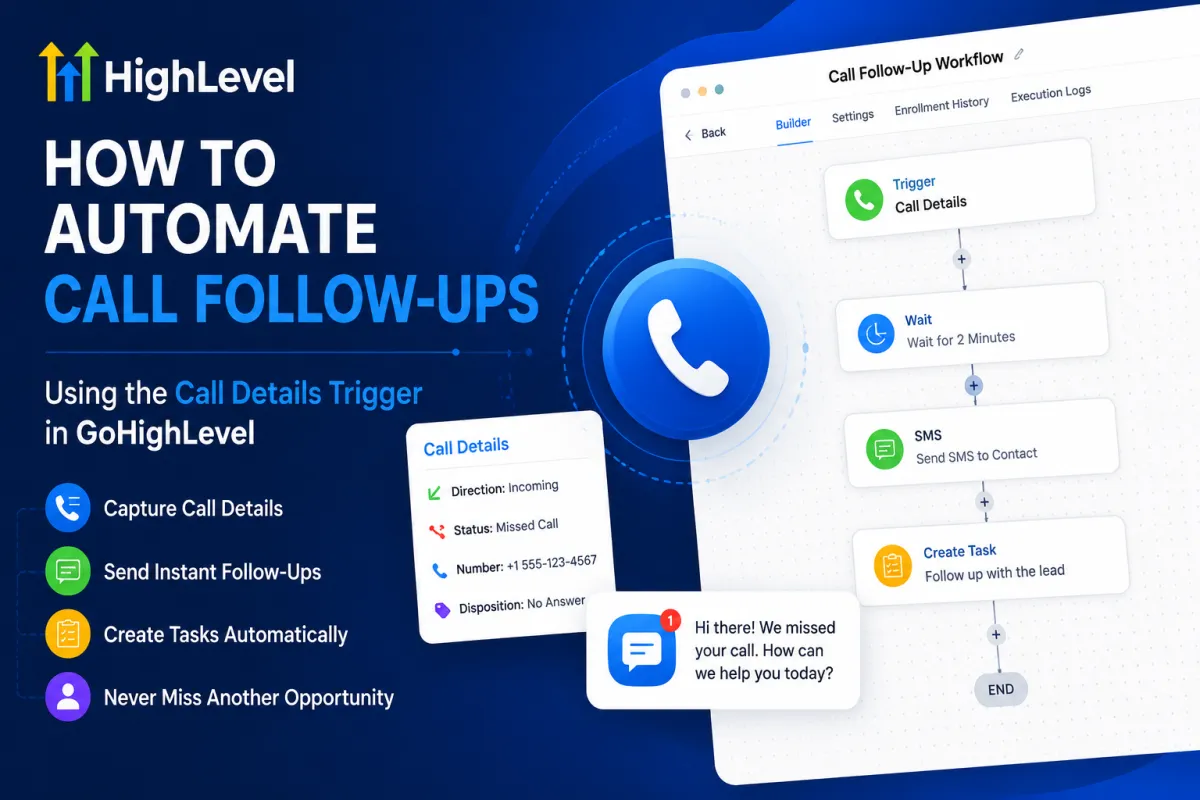
Automate Call Follow-Ups
How to Automate Call Follow-Ups Using the Call Details Trigger in GoHighLevel
Following up after a phone call can make the difference between winning a customer and losing a lead. But when a business handles dozens of calls every day, manually tracking which contacts need a callback, SMS, email, or sales follow-up can quickly become difficult.
That is where GoHighLevel’s Call Details workflow trigger becomes useful. It allows you to start a workflow when specific information about a call matches your selected conditions. You can use call direction, call status, phone number, number pool, and custom dispositions to create targeted follow-up automations.
In this guide, you’ll learn how to use the Call Details trigger to automate call follow-ups in GoHighLevel and build a workflow that keeps leads moving without requiring constant manual monitoring.
What Is the Call Details Trigger in GoHighLevel?
The Call Details trigger starts a workflow when a call matches the conditions you configure. Instead of creating a generic automation for every phone interaction, you can tell GoHighLevel exactly which call situations should start the workflow.
For example, you can create a workflow that runs when:
An incoming call is not answered
A call reaches voicemail
A call is marked busy
An outgoing call is completed
A specific custom disposition is selected
A call comes through a particular phone number or number pool
This gives you much more control over what happens after a call.
Why Automate Call Follow-Ups?
Without automation, a missed call can easily become a missed opportunity. Someone on your team may forget to call the lead back, send a message too late, or fail to create a follow-up task.
With GoHighLevel workflows, the follow-up process can happen automatically.
For example, a missed incoming call could trigger a workflow that:
Sends an SMS to the contact.
Creates a follow-up task for a team member.
Sends an internal notification.
Waits for a specific period.
Sends another follow-up if necessary.
This creates a consistent process and reduces the amount of manual work required from your team.
Step 1: Open the Workflow Builder
Start by logging in to your GoHighLevel sub-account.
Navigate to:
Automation → Workflows
Create a new workflow from scratch or open an existing workflow where you want to add call-based automation.
The Workflow Builder is where you will define both the event that starts the automation and the actions that should happen afterward.
Step 2: Add the Call Details Trigger
Inside the workflow builder, click Add New Trigger.
Search for and select:
Call Details
Give your trigger a clear name that explains its purpose. For example:
Missed Call Follow-Up
Using descriptive names makes it easier to manage your workflows later, especially when an account contains many different automations.

Step 3: Choose the Call Direction
Next, configure the Call Direction filter.
You can use the direction to distinguish between incoming and outgoing calls.
For a missed-call follow-up workflow, you would typically focus on incoming calls because these are calls from people trying to reach the business.
For example:
Call Direction → Incoming
This prevents the workflow from unnecessarily enrolling contacts after unrelated outgoing calls.

Step 4: Select the Call Details or Status
Now choose the call outcome that should activate your automation.
Depending on the setup and available filters, you can target outcomes such as:
Not answered
Busy
Voicemail
Completed
Canceled
For a missed-call automation, you could configure the trigger around calls that were not answered or reached voicemail.
This means the workflow will only respond when the call matches the conditions you selected instead of reacting to every call.
Step 5: Add Custom Dispositions When Needed
For businesses that use custom call dispositions, the Call Details trigger can also respond to those classifications.
For example, a sales team could use dispositions such as:
Interested
Call Back Later
Qualified
Not Interested
Appointment Requested
A selected custom disposition can then start a specific workflow, allowing the follow-up to match the result of the conversation. HighLevel supports using custom dispositions with the Call Details trigger for actions such as SMS or email follow-ups, tasks, and appointment-related automation.

Step 6: Build the Follow-Up Actions
Once your trigger is configured, add the actions that should happen automatically.
For example, after a missed incoming call, you could create this sequence:
Call Details → Missed Call → Send SMS → Create Task → Wait → Follow Up

Your first action could send a message such as:
“Hi {{contact.first_name}}, we noticed we missed your call. How can we help?”
Then add a Create Task action for the sales or support team so someone knows a personal callback is still required.
You can also add a Wait step before sending another follow-up, helping you avoid sending multiple messages too quickly.
Step 7: Test and Publish the Workflow
Before activating the workflow, test the automation with a suitable contact and verify that the correct trigger conditions are being met.
Check that:
The correct call direction is selected.
The intended call status or detail activates the workflow.
The SMS or email is sent correctly.
The task is assigned to the right team member.
Wait steps behave as expected.
Contacts are not being added unnecessarily.
Once everything works correctly, publish the workflow.
Practical Use Cases for Call Follow-Up Automation
Missed Call Recovery
A business can automatically follow up whenever an incoming call is not answered. The workflow can send an immediate SMS and create a callback task for the team.
Voicemail Follow-Up
When a customer leaves a voicemail, the workflow can notify the appropriate team member and create a task to return the call.
Completed Sales Calls
For completed outgoing calls, you can trigger a follow-up email, create the next sales task, or move the contact into another stage of your sales process.
Custom Sales Outcomes
Custom dispositions can help sales teams create different automations based on what happened during the call. For example, a “Call Back Later” disposition could start a follow-up sequence while a qualified disposition could move the contact into a sales process.
Best Practices for Call Follow-Up Workflows
The most effective call workflows are specific rather than overly broad.
Use filters to separate incoming and outgoing calls, target the call outcomes that actually require action, and use custom dispositions when your team needs more detailed control.
You should also avoid creating unnecessary duplicate follow-ups. Since qualifying call events can cause workflows to run again, review your workflow re-entry settings and conditions carefully when building repeated call automations.
Final Thoughts
GoHighLevel’s Call Details trigger turns phone activity into an opportunity for automated follow-up. Instead of relying on team members to remember every missed call or completed conversation, you can build workflows that automatically respond to the call situations that matter.
Whether you want to recover missed calls, follow up on voicemails, manage sales callbacks, or automate actions based on custom call dispositions, the Call Details trigger gives you the control needed to create a more consistent customer communication process.
Once properly configured, your team can spend less time monitoring call logs and more time actually talking to customers and closing opportunities.
Frequently Asked Questions
Can the Call Details trigger work with incoming and outgoing calls?
Yes. The Call Direction filter lets you specify whether the workflow should respond to incoming calls, outgoing calls, or the relevant direction for your automation.
Can I trigger a workflow after a missed call?
Yes. You can configure the Call Details trigger around call outcomes such as not answered or busy and then add actions such as SMS, notifications, or tasks.
Can custom dispositions trigger follow-up workflows?
Yes. HighLevel supports a Custom Disposition filter within the Call Details trigger, allowing specific call classifications to start different automations.
Can I use the Call Details trigger for completed calls?
Yes. You can create workflows that respond to completed outgoing calls and then automate actions such as follow-up communication or the next sales activity.
Can the same contact enter the workflow more than once?
Yes. Multiple qualifying call events can cause a contact to enter a workflow again, so workflow re-entry settings and conditions should be configured carefully to prevent unwanted duplicate automation.
Need Expert Help with GoHighLevel?
New to GoHighLevel and ready to get started? Buy your GoHighLevel account here and launch with confidence.
Already know what you need and want our team to handle everything, from complete setup and customization to funnels, workflows, automations, CRM, and pipelines? Click here.



