

How to Turn Manual Business Processes Into GoHighLevel Automations
How to Turn Manual Business Processes Into GoHighLevel Automations
Running a business involves countless repetitive tasks, from responding to customer inquiries to updating sales records and managing follow-ups. When handled manually, these activities consume valuable time and create opportunities for delays, errors, and missed leads.
As businesses grow, maintaining consistency becomes increasingly challenging.
GoHighLevel automation offers a practical way to streamline these operations through configurable workflows. By automating predictable tasks, businesses can improve response consistency, organize customer information, and allow employees to focus on activities requiring human attention.
How to Identify Business Processes Worth Automating
Not every business activity should be automated. The best candidates are repetitive, rule-based tasks that follow predictable sequences.
Start by examining your daily operations. Identify activities that:
Occur frequently and require similar actions.
Begin with a specific event, such as receiving an inquiry.
Involve repeated data entry or manual follow-ups.
Experience delays when responsibilities change between employees.
For example, consider a business receiving inquiries through its website. An employee manually reviews each submission, creates a CRM record, sends an acknowledgment, and assigns a sales representative.
This process has a clear starting point, defined actions, and a measurable outcome, making it suitable for automation.
Before implementation, document every step and identify decisions that still require human judgment.
Understanding How GoHighLevel Workflow Automation Works
GoHighLevel's Workflow Builder allows businesses to create automated sequences based on specific events and configured rules.
A typical workflow follows this structure:
Trigger → Filters/Conditions → Actions → Wait Steps → Outcomes
A trigger initiates the workflow, such as submitting a form or booking an appointment.
Filters and If/Else conditions determine which contacts qualify and how the workflow should proceed.
Actions execute configured tasks, including sending emails, assigning contacts, creating opportunities, and notifying employees.
Wait steps introduce delays or pause execution until specified conditions are met.
Together, these components help businesses create consistent, repeatable processes.
Actual functionality depends on workflow configuration, account settings, communication services, and available integrations.
Step-by-Step: Turn a Manual Process Into GoHighLevel Automation
Consider a service-based business that wants to automate website lead capture, CRM organization, initial responses, and follow-up assignments.
Step 1: Map Your Existing Process
Document what currently happens when someone submits a website inquiry.
Typically, an employee receives the submission, records the prospect's information, sends an acknowledgment, and forwards the inquiry to a sales representative.
Define the intended automated outcome: capture the lead, organize its information, acknowledge the inquiry, and assign follow-up responsibility.
Step 2: Open GoHighLevel Workflow Builder
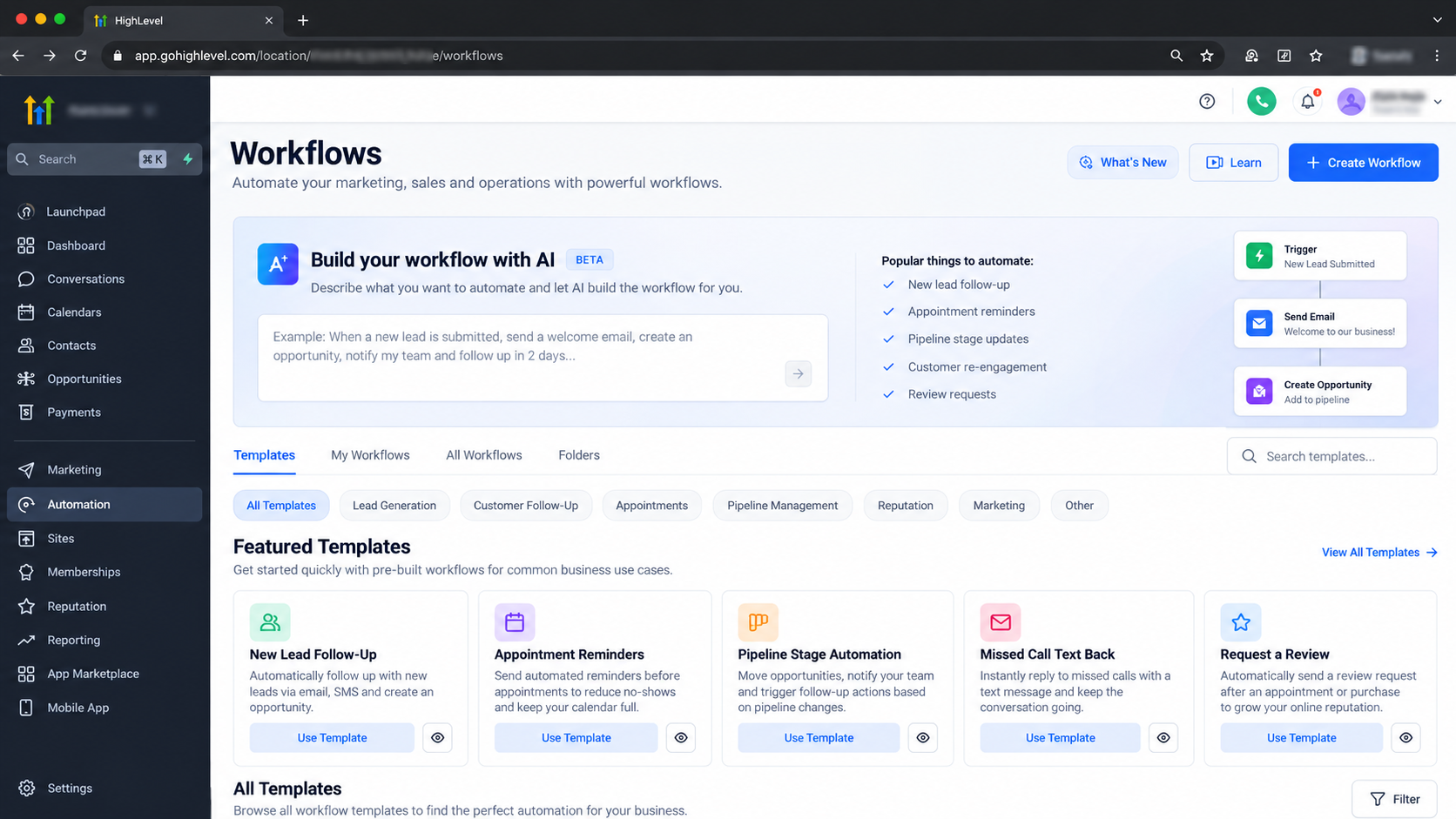
Log in to your GoHighLevel sub-account and navigate to Automation → Workflows.
Create a new workflow from scratch or select an appropriate template.
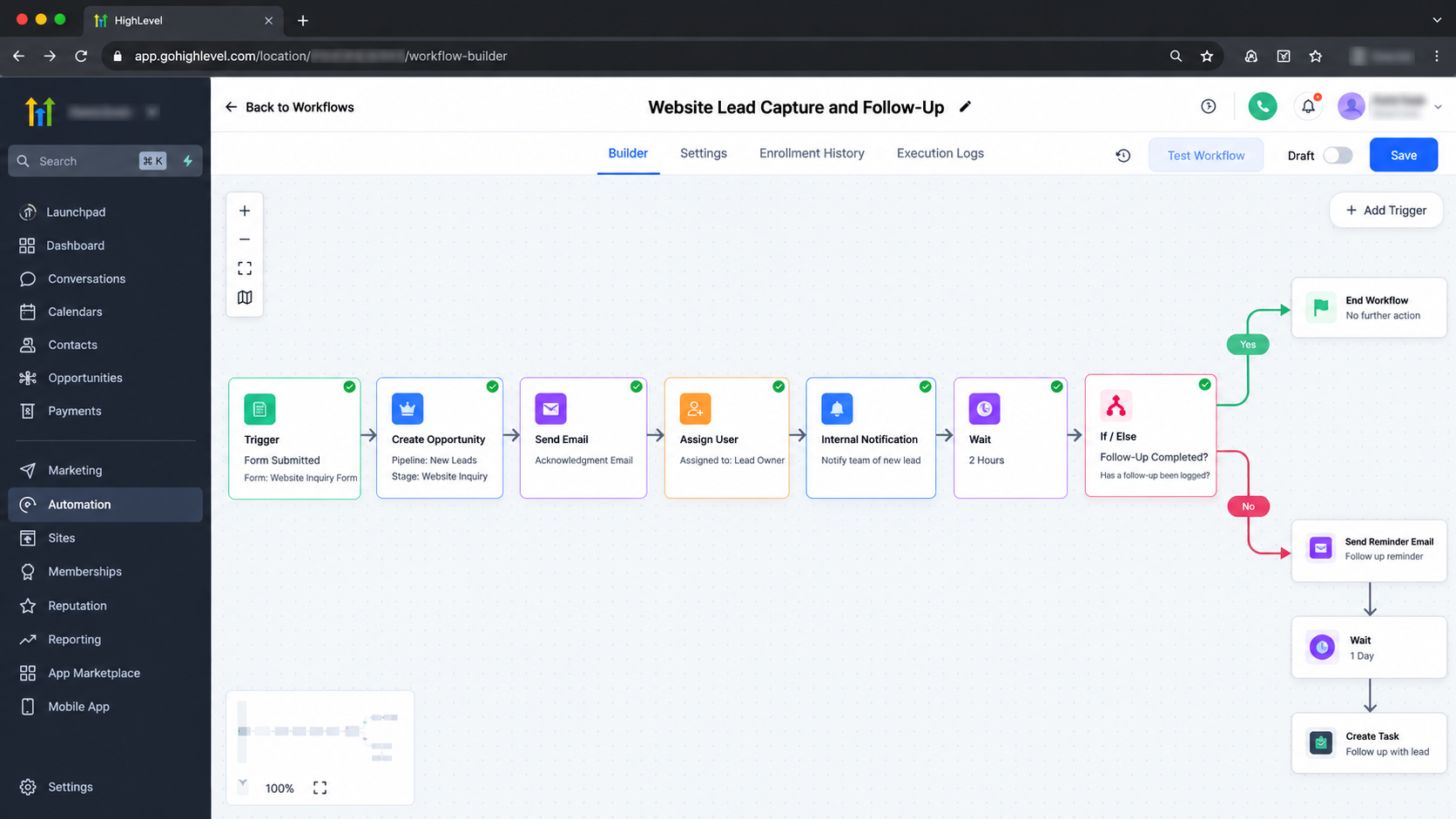
Give it a descriptive name, such as "Website Lead Capture and Follow-Up."
A clear name makes future maintenance and troubleshooting easier.
Step 3: Configure the Workflow Trigger
Select Add New Trigger and choose Form Submitted.
Under the trigger filters, use Form Is to select your website's GoHighLevel inquiry form.
Save the trigger.
Now, submissions matching that form configuration can initiate the workflow.
External website forms may require additional integration or a different trigger.
Step 4: Configure the Workflow Actions
Add actions that handle the lead's initial journey.
First, configure Create Opportunity to place the prospect in your chosen sales pipeline and initial stage.
Next, add Send Email with a professional acknowledgment confirming that the inquiry was received.
Use Assign User to allocate responsibility and an Internal Notification to inform the assigned team member.
You can also configure a follow-up task where appropriate.
Review existing records and duplicate-management settings before creating opportunities.
Step 5: Add Timing and Conditional Logic
Add a Wait action to allow time for the assigned representative to contact the prospect.
Then use an If/Else condition to evaluate a configured signal, such as a contact tag indicating that follow-up has been completed.
If the tag exists, end the reminder sequence. Otherwise, notify the responsible employee.
This approach depends on employees or other workflows updating the tag correctly.
For customer-facing follow-ups, check communication consent and contact eligibility before sending messages.
Step 6: Test and Publish Your Workflow
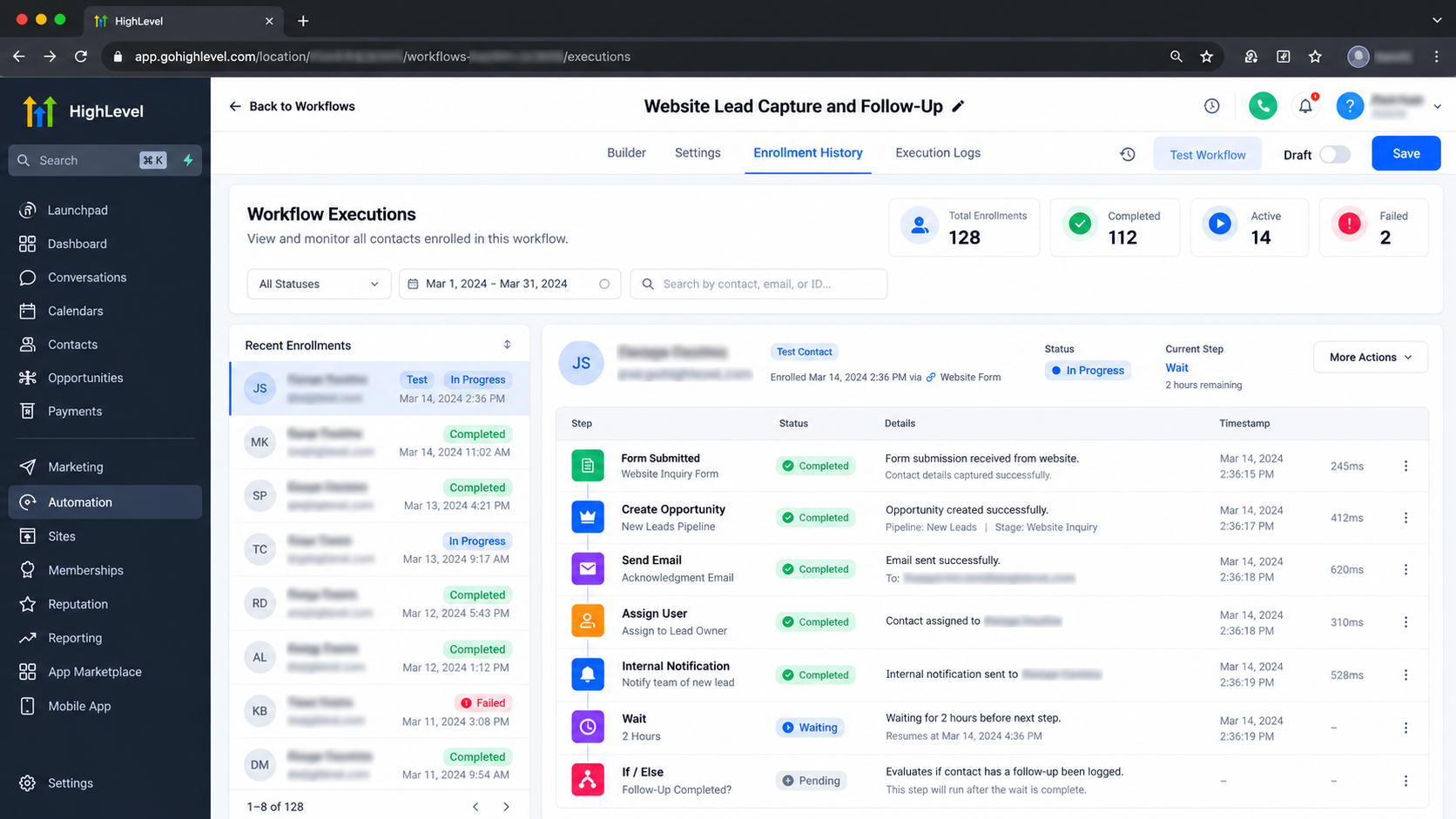
Save the workflow and submit a test inquiry using a sample contact.
Confirm that the contact information appears correctly, the opportunity is created, the acknowledgment is delivered, and the responsible employee receives the notification.
Test both conditional branches and verify timing through workflow execution logs.
Resolve any incorrect filters, missing information, or duplicate actions before publishing.
Once testing succeeds, publish the workflow and monitor its performance.
Three More Ways to Automate Business Processes
Beyond website inquiries, GoHighLevel workflows support several operational improvements.
1. Lead Follow-Up Automation
Replace manual follow-up reminders with scheduled communications or internal tasks. Configure eligibility rules and stop conditions to prevent unnecessary messages.
2. Appointment Management
Use appointment-related triggers to send confirmations, schedule reminders, and notify employees about relevant booking updates.
3. Sales Pipeline Management
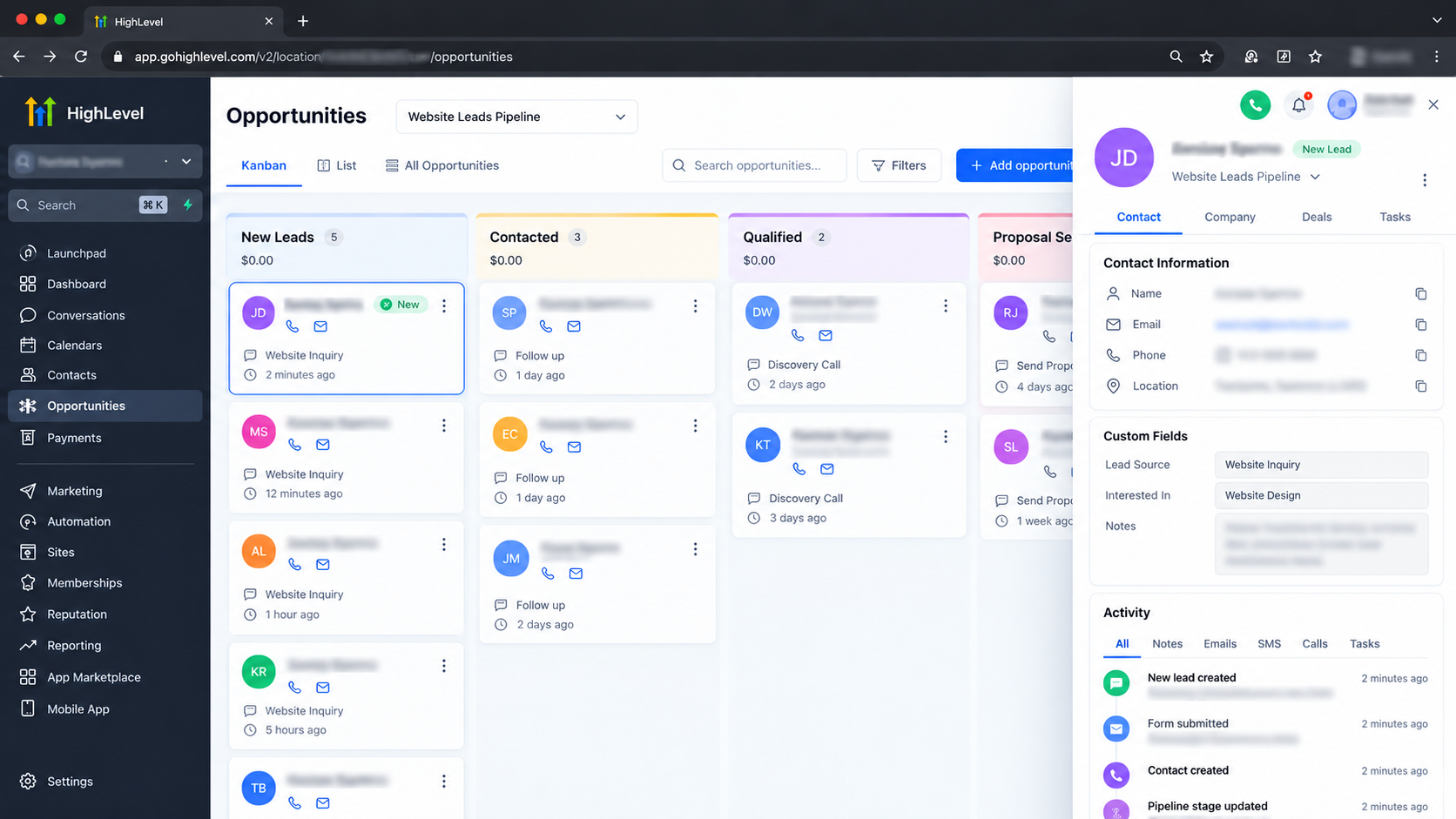
Use opportunity-related triggers to initiate internal notifications or follow-up activities when deals move between pipeline stages.
Each application reduces repetitive coordination and helps maintain process consistency.
Common GoHighLevel Automation Mistakes to Avoid
Automation performs best when the underlying process is well-defined.
Common mistakes include incorrect triggers, conflicting workflows, duplicate follow-ups, and missing conditional checks.
Avoid automating inefficient processes without first correcting them.
Test workflow behavior before publication and review execution logs when results differ from expectations.
Always respect customer communication preferences, opt-outs, and applicable messaging requirements.
Regular maintenance is equally important because business processes and operational requirements change.
Build More Scalable Business Operations
Successful business process automation begins with understanding how work moves through your organization.
GoHighLevel helps convert repetitive activities into structured workflows that support better lead management, consistent communication, and more reliable execution.
Frequently Asked Questions (FAQs)
1. What is GoHighLevel automation?
GoHighLevel automation allows businesses to automate repetitive tasks using configurable workflows. These workflows can handle lead follow-ups, customer communications, appointment reminders, CRM updates, and internal notifications based on specific triggers and conditions.
2. How do I automate manual business processes in GoHighLevel?
Start by identifying repetitive tasks and documenting their steps. Navigate to Automation → Workflows in GoHighLevel, create a workflow, select an appropriate trigger, configure the required actions and conditions, test the process, and publish it once everything works correctly.
3. Which business processes can be automated using GoHighLevel?
GoHighLevel can automate various operational processes, including lead capture, follow-up communications, appointment confirmations, sales pipeline updates, contact assignments, and internal team notifications. Automation capabilities depend on the account's configuration and supported integrations.
4. Can GoHighLevel automatically follow up with new leads?
Yes. GoHighLevel can initiate email or SMS follow-up sequences when a lead meets configured workflow conditions. Businesses can add wait steps, conditional branches, and exit conditions to control communication timing and prevent unnecessary messages. Appropriate customer consent and messaging compliance are essential.
5. Do I need coding experience to create GoHighLevel workflows?
No. GoHighLevel provides a visual Workflow Builder that allows users to configure triggers, actions, and conditional logic without writing code. However, more complex automations involving external systems, APIs, or advanced integrations may require technical expertise.
Need Expert Help with GoHighLevel?
New to GoHighLevel and ready to get started? Buy your GoHighLevel account here and launch with confidence.
Already know what you need and want our team to handle everything, from complete setup and customization to funnels, workflows, automations, CRM, and pipelines? Click here.



