

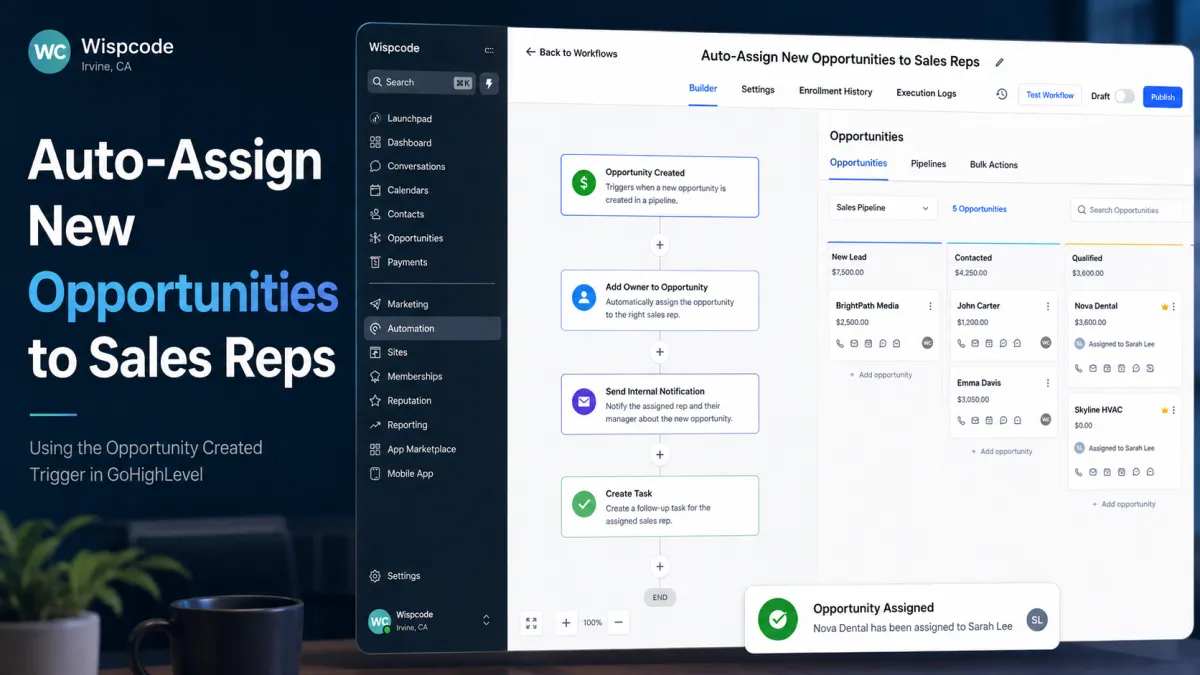
Auto-Assign New Opportunities to Sales Reps in GoHighLevel
How to Automatically Assign New Opportunities to Sales Reps Using the Opportunity Created Trigger in GoHighLevel
A new deal entering your pipeline should not sit unassigned while someone decides who owns it. In HighLevel, the Opportunity Created trigger can start a workflow when a new opportunity record is created, giving you a clean point to apply routing rules, set ownership, and alert the responsible salesperson. Contact ownership and opportunity ownership are separate concepts, and HighLevel can keep them aligned or allow them to differ. A reliable GoHighLevel Opportunity Created workflow therefore handles ownership deliberately.
What Is the GoHighLevel Opportunity Created Trigger?

When the Trigger Fires
The Opportunity Created trigger runs when a new opportunity is created. It is not the same as Contact Created, and it does not fire merely because an existing opportunity changes stage or status. Because Opportunity Created is opportunity-based, the newly created opportunity is already in workflow context for opportunity-specific actions.
Using Opportunity Filters

HighLevel currently documents filters including Assigned To, Has Tag, In Pipeline, Lead Value, Lost Reason, and Status. You can combine filters to narrow enrollment. For most sales-routing workflows, In Pipeline is the safest starting point. If your account has several pipelines, limiting the trigger to Sales prevents unrelated opportunities from entering the assignment workflow.
Why Automatically Assign New Opportunities?
Automated assignment removes the gap between “deal created” and “rep responsible.” That can shorten response time, reduce unassigned deals, improve accountability, and create more consistent follow-up. It also removes routine manual routing from sales managers.
How to Automatically Assign New Opportunities to Sales Reps

Step 1: Create the Workflow
Go to Automations > Workflows in the sub-account, create a new workflow from scratch, and give it a descriptive name such as “New Sales Opportunity Assignment.” HighLevel currently places workflow creation and management within the Automations area.
Step 2: Add the Opportunity Created Trigger
Add a workflow trigger and select Opportunity Created. This trigger represents one specific event: creation of a new opportunity.
Step 3: Add the Right Filters
Add In Pipeline and select the pipeline this routing logic should serve. Add other filters only when they affect assignment. For example, Lead Value can separate high-value deals for a senior rep. Keeping trigger criteria focused makes the workflow easier to understand and prevents opportunities from unrelated pipelines from entering the routing process.
Step 4: Assign the Opportunity to the Sales Rep

For direct ownership of the opportunity itself, use Add Owner to Opportunity. HighLevel documents this action as setting the selected user as the opportunity owner. Because Opportunity Created already supplies an opportunity in context, a Find Opportunity step is unnecessary for this basic pattern.
Pay attention to Only Apply to Unassigned Opportunities. When enabled, the action assigns an owner only if the opportunity has none; an existing owner remains unchanged. When disabled, the action can override the current owner. Enabling this safeguard is usually safer unless reassignment is intentional.

Step 5: Handle Multiple Sales Reps
This is where many workflows become inaccurate. HighLevel’s Assign To User action supports multiple users, equal round-robin distribution, uneven traffic splits, and an Only Apply to Unassigned Contacts option, but HighLevel defines it as a contact-assignment action. Do not describe it as direct opportunity round-robin.

If your account keeps contact and opportunity owners synchronized, contact assignment may form part of a team-routing design, but test the resulting opportunity owner before relying on it. If “Allow different owners for contacts and its opportunities” is enabled, the records can have separate owners, so assigning the contact does not prove that the opportunity was assigned to that rep. For deterministic routing, use opportunity-owner actions in branches or other verified logic that explicitly targets the opportunity.
Step 6: Add Rep Notifications or Follow-Up Tasks
After ownership is set, add an internal notification or follow-up task so the responsible rep knows action is required. HighLevel specifically identifies notifications and task assignments as practical actions following an Opportunity Created trigger.
Step 7: Test and Publish the Workflow
Create a sample opportunity in the target pipeline and run the workflow end to end. Confirm that the correct record enrolled, filters were respected, the intended opportunity owner was set, and an existing owner was not overwritten unexpectedly. Check the related contact to confirm whether ownership remained synchronized or independent. Test notifications or tasks, then publish only after the handoff works correctly. HighLevel recommends testing workflows with sample data before activation.
Common Mistakes to Avoid
Common errors include using Contact Created instead of Opportunity Created, confusing contact ownership with opportunity ownership, leaving pipeline criteria too broad, overwriting an existing owner unintentionally, and assuming Assign To User performs direct opportunity round-robin. The last mistake is especially important because HighLevel explicitly describes Assign To User as assigning contacts, while Add Owner to Opportunity targets the opportunity record itself.
A Practical Example
A marketing agency creates an opportunity whenever a qualified consultation lead enters its Sales Pipeline. Opportunity Created enrolls the deal, In Pipeline limits the workflow to Sales, and Add Owner to Opportunity assigns the salesperson. The workflow then sends an internal alert or creates a task. The opportunity now has explicit sales ownership. The related contact may share that owner or have a different one, depending on the account’s ownership configuration.

Final Thoughts
The GoHighLevel Opportunity Created Trigger is most useful when it creates clear responsibility as soon as a deal enters the pipeline. Trigger on creation, filter intentionally, assign the opportunity owner with an opportunity-aware action, protect existing ownership when appropriate, and test contact-versus-opportunity behavior before publishing. Done correctly, GoHighLevel opportunity automation reduces routing delays without hiding who actually owns the deal.
Frequently Asked Questions
1. What does the Opportunity Created Trigger do in GoHighLevel?
The Opportunity Created Trigger starts a workflow whenever a new opportunity is created in GoHighLevel. You can use it to automate actions such as assigning ownership, creating tasks, sending internal notifications, and starting follow-up processes.
2. Can I trigger the workflow only for opportunities in a specific pipeline?
Yes. The Opportunity Created Trigger supports filters, including In Pipeline, so you can restrict the workflow to opportunities created in a specific pipeline such as your Sales Pipeline. This prevents unrelated opportunities from entering the automation.
3. What is the Add Owner to Opportunity action in GoHighLevel?
Add Owner to Opportunity assigns a selected GoHighLevel user as the owner of the opportunity currently being processed by the workflow. The action requires an opportunity to be in context, either from an opportunity-based trigger or a previous Find Opportunity action.
4. What does Only Apply to Unassigned Opportunities mean?
When Only Apply to Unassigned Opportunities is enabled, GoHighLevel assigns the selected user only when the opportunity does not already have an owner. If an owner is already assigned, the existing ownership remains unchanged. If the option is disabled, the workflow can overwrite the existing opportunity owner.
5. What is the difference between Add Owner to Opportunity and Assign To User?
They control different records. Add Owner to Opportunity assigns ownership of the opportunity, while Assign To User is designed primarily to assign the contact to one or more users. GoHighLevel can also be configured to allow contacts and their opportunities to have different owners.
6. Can I distribute leads between multiple sales reps automatically?
Yes. The Assign To User workflow action supports multiple users and can distribute contacts using round-robin or weighted traffic distribution. For example, you could rotate assignments between Alex Morgan, Sarah Lee, and Taylor Brooks instead of sending every contact to the same salesperson.
Need Expert Help with GoHighLevel?
New to GoHighLevel and ready to get started? Buy your GoHighLevel account here and launch with confidence.
Already know what you need and want our team to handle everything, from complete setup and customization to funnels, workflows, automations, CRM, and pipelines? Click here.



