

To Audit Contact Data Before a GoHighLevel Import: Step-by-Step Guide
How to Audit Contact Data Before Importing It Into GoHighLevel
Introduction
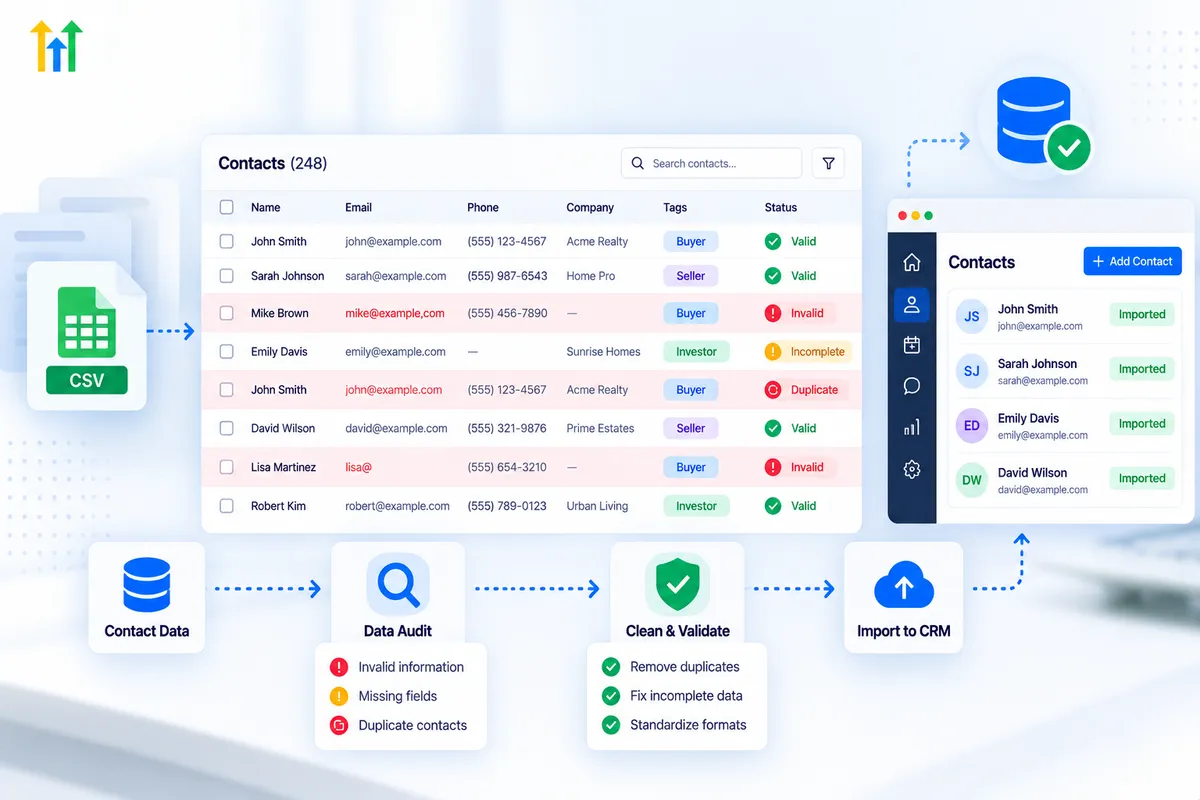
Importing contacts into GoHighLevel can save hours of manual data entry, but a poorly prepared contact list can create problems that are much harder to fix later. Duplicate records, inconsistent phone numbers, incorrect field mappings, missing information, and unwanted data can all affect how your CRM works.
That is why a "contact data audit should happen before you import anything into GoHighLevel".
A proper audit is not simply about checking whether a spreadsheet looks organized. It means reviewing the quality, consistency, completeness, and structure of your contact data so it is ready to map into the right GoHighLevel fields.
In this guide, you will learn how to audit contact records before a GoHighLevel import, what to check in your CSV file, how to prepare fields and identifiers, and how to reduce common import problems.
Why Audit Contact Records Before a GoHighLevel Import?
A CRM is only as useful as the information stored inside it. If your source data contains inaccurate or inconsistent records, importing it without review can transfer those problems directly into your GoHighLevel account.
GoHighLevel supports CSV contact imports and allows you to map spreadsheet columns to standard and custom contact fields. During the import process, you can also choose options such as creating or updating records, creating a Smart List, adding tags, or adding contacts to a workflow.
That makes the preparation stage important.
Before importing, your goal should be to answer questions such as:
Are the contacts complete enough to be useful?
Are email addresses formatted correctly?
Are phone numbers consistent?
Are duplicate records present?
Do the spreadsheet columns correspond to the correct GoHighLevel fields?
Are custom fields already created?
Are tags and other values standardized?
Are you importing information that you actually need?
The cleaner your source file is, the easier the import and post-import verification process becomes.
What Should You Check During a Contact Data Audit?
A useful audit should cover several areas rather than focusing on one type of data.
1. Check Required Contact Information
Start by checking whether each row contains enough information to identify or create a contact.
GoHighLevel's current import documentation states that at least one of the following is required to create or update a contact: First Name, Email Address, or Phone Number.
That does not mean every contact needs all three fields. Instead, review your list and identify records that contain very little usable information.
For example:
First Name | Phone | |
|---|---|---|
Sarah | +14155550100 | |
John | +14155550101 | |
Mike |
These records may still be usable, but incomplete records should be identified before import so you understand what information will and will not be available inside the CRM.
2. Validate Email Addresses
Email is one of the most important contact identifiers in a CRM, so it deserves special attention.
Look for:
Missing email addresses
Leading or trailing spaces
Obvious spelling mistakes
Invalid formatting
Duplicate email addresses
Placeholder addresses
Personal or generic addresses that should be categorized differently
For example, an address such as sarah @example.com should be corrected before import.
Also look for duplicate email addresses across multiple rows. If multiple records represent the same person, determine which record contains the most accurate information before uploading the file.
3. Standardize Phone Numbers
Phone data is another major area where inconsistent formatting can cause problems.
HighLevel's import documentation specifically warns against special characters in phone numbers and recommends appropriate numerical formatting. Its troubleshooting documentation also references E.164 formatting for phone-number values.
Before importing, review whether numbers are written consistently.
For example, your source file might contain:
(415) 555-0100415-555-01004155550100+14155550100
Standardize your source data rather than mixing several formats throughout the file.
This is particularly important if your workflows, calling, SMS, or contact matching depend on reliable phone information.
How to Find Duplicate Contact Records
Duplicate detection should be one of the most important steps in your audit.
Suppose your spreadsheet contains:
Name | Phone | |
|---|---|---|
Sarah Jones | +14155550100 | |
Sarah Jones | +14155550100 |
These are likely duplicate records.
But duplicates are not always identical. You might instead find:
Name | Phone | |
|---|---|---|
Sarah Jones | +14155550100 | |
Sarah J. | +14155550100 |
A basic visual check may not catch these immediately.
Use spreadsheet tools to identify repeated email addresses and phone numbers. Then determine whether the records represent the same person or legitimately separate records.
It is also important to understand how GoHighLevel handles CSV imports. Its current documentation says that CSV imports use email and/or phone information to identify existing contacts, and the import process allows you to select the primary and secondary matching preferences.
Cleaning duplicates before the import gives you greater control over the data rather than relying entirely on the import process to resolve inconsistencies.
Review Your CSV Column Structure
Once the records themselves have been reviewed, examine the structure of your CSV.
The first row should contain headers, and at least one header should correspond to a field recognized by GoHighLevel. The platform supports mapping CSV columns to standard and custom contact fields.
A simple structure might look like:
First Name | Last Name | Phone | Company | Lead Source | |
|---|---|---|---|---|---|
Sarah | Jones | +14155550100 | ABC Inc. | ||
Mark | Smith | +14155550101 | XYZ Ltd. | Website |
Keep each column focused on one type of information.
For example, avoid putting information like this into one field:
Sarah Jones - [email protected] - +14155550100 - Facebook Lead
Instead, separate the information into appropriate columns.
This makes field mapping much easier and gives you cleaner data after import.
Review Standard Fields and Custom Fields
Not every piece of information from your old system will have a direct standard-field equivalent in GoHighLevel.
For example, your previous CRM might contain:
Lead Source
Customer Type
Preferred Service
Account Manager
Renewal Date
Industry
Client Tier
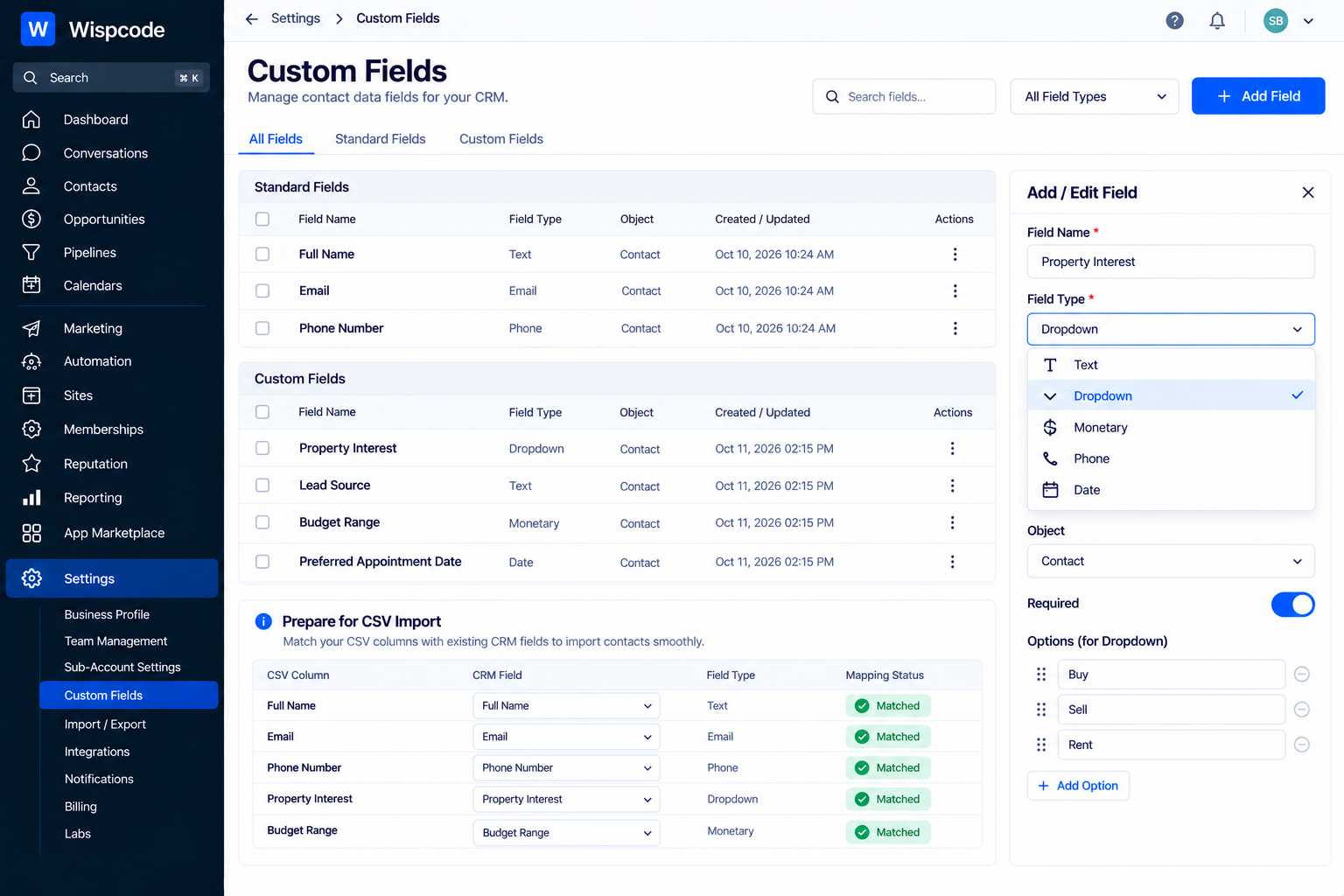
Some of these may need to be stored in "custom fields".
If the required custom fields do not already exist, create them before completing your import. GoHighLevel's documentation confirms that CSV columns can be mapped to custom fields, provided those fields exist in the account.
This is an important distinction: do not create your import first and figure out your data structure afterward.
Instead:
Review the source columns.
Decide where each value belongs.
Create necessary custom fields.
Standardize the values.
Map the CSV columns during import.
This produces a much more predictable result.
Standardize Tags and Categories
Tags can be useful for organizing imported contacts, but inconsistent tag names can quickly make a CRM difficult to manage.
For example, these might all represent the same source:
Facebookfacebook leadFBFacebook Leads
Choose one naming convention before importing.
GoHighLevel supports adding tags during CSV imports, including through a tags column in the CSV.
Before importing, decide which tags are actually necessary.
Avoid importing dozens of historical tags simply because they existed in an old CRM. Keep tags that support current segmentation, workflows, reporting, or operational processes.
Review Contact Ownership
If your contact list includes sales representatives or account managers, review the owner information before importing.
Make sure names are consistent and correspond to the appropriate users in your GoHighLevel account.
For example, avoid having:
John Smithjohn smithJohn S.J Smith
if all four values refer to the same team member.
Standardize the names in your source file and verify that the appropriate users exist before assigning ownership.
This prevents unnecessary cleanup after the import.
Check Dates, Dropdowns, and Other Field Values
Different field types often require consistent values.
For example, a date column should use a consistent date format rather than mixing several styles. GoHighLevel's CSV formatting guidance lists supported date formats and provides formatting requirements for different field types.
Dropdown values should also be standardized.
Instead of:
CustomercustomerCurrent CustomerClient
decide which value to use and apply it consistently.
The same principle applies to:
Checkbox fields
Multi-select fields
Contact types
Lead sources
Status values
Industry categories
The goal is simple: "one meaning should have one consistent value."
Create a Backup Before Making Changes
Before heavily cleaning or transforming your original dataset, keep an untouched copy.
For example:
Original Contacts.csv
Then create a separate working file:
Contacts - Cleaned.csv
This gives you a reference point if you accidentally remove or modify information during the audit.
You can also keep a simple change log documenting major transformations, such as:
Removed duplicate records
Standardized phone numbers
Corrected email addresses
Renamed tags
Created custom fields
Removed obsolete columns
This is especially useful when working with large client migrations.
Use a Test Import Before a Large Migration
If the dataset is large or the migration is important, avoid treating the entire import as one experiment.
Prepare a small representative sample first.
Include different types of records, such as:
A contact with email and phone
A contact with only email
A contact with only phone
A contact containing custom-field data
A contact with tags
An existing contact that should be updated
Then review how the information appears in GoHighLevel.
Check the contact record, field values, tags, ownership, and any other information relevant to your workflow.
Once the sample behaves as expected, proceed with the larger import.
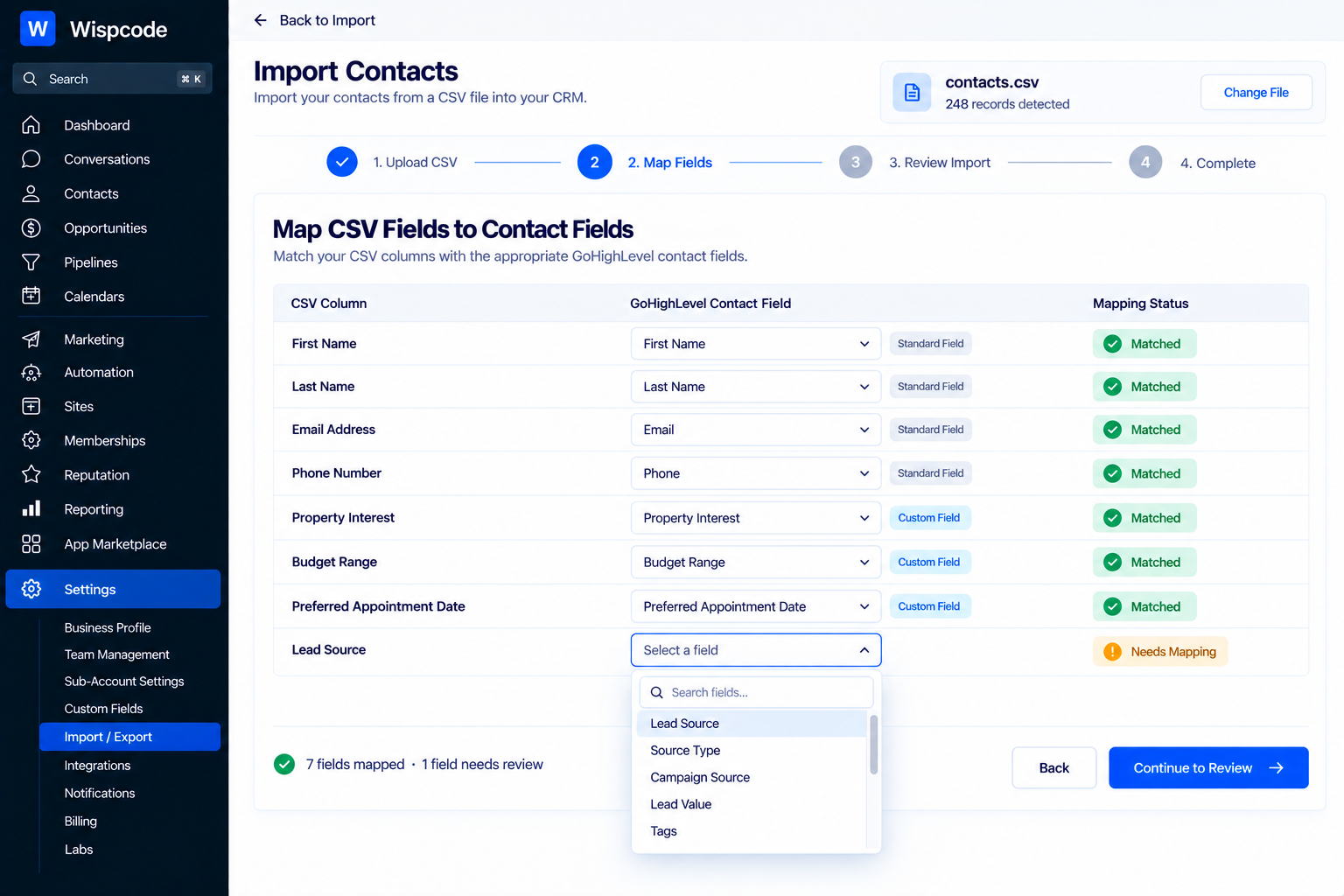
Review the Import Mapping Carefully
When you upload your CSV, do not immediately start the import.
Review every important mapping.
For example:
CSV column → GoHighLevel field
First Name → First Name
Email → Email
Phone → Phone
Lead Source → Lead Source
Client Tier → Client Tier custom field
If a column does not have a suitable destination, leave it unmapped rather than forcing it into the wrong field. GoHighLevel allows unmapped columns to be excluded from the import.
This is one of the easiest ways to avoid corrupting otherwise useful data.
Be Careful With Workflow Enrollment
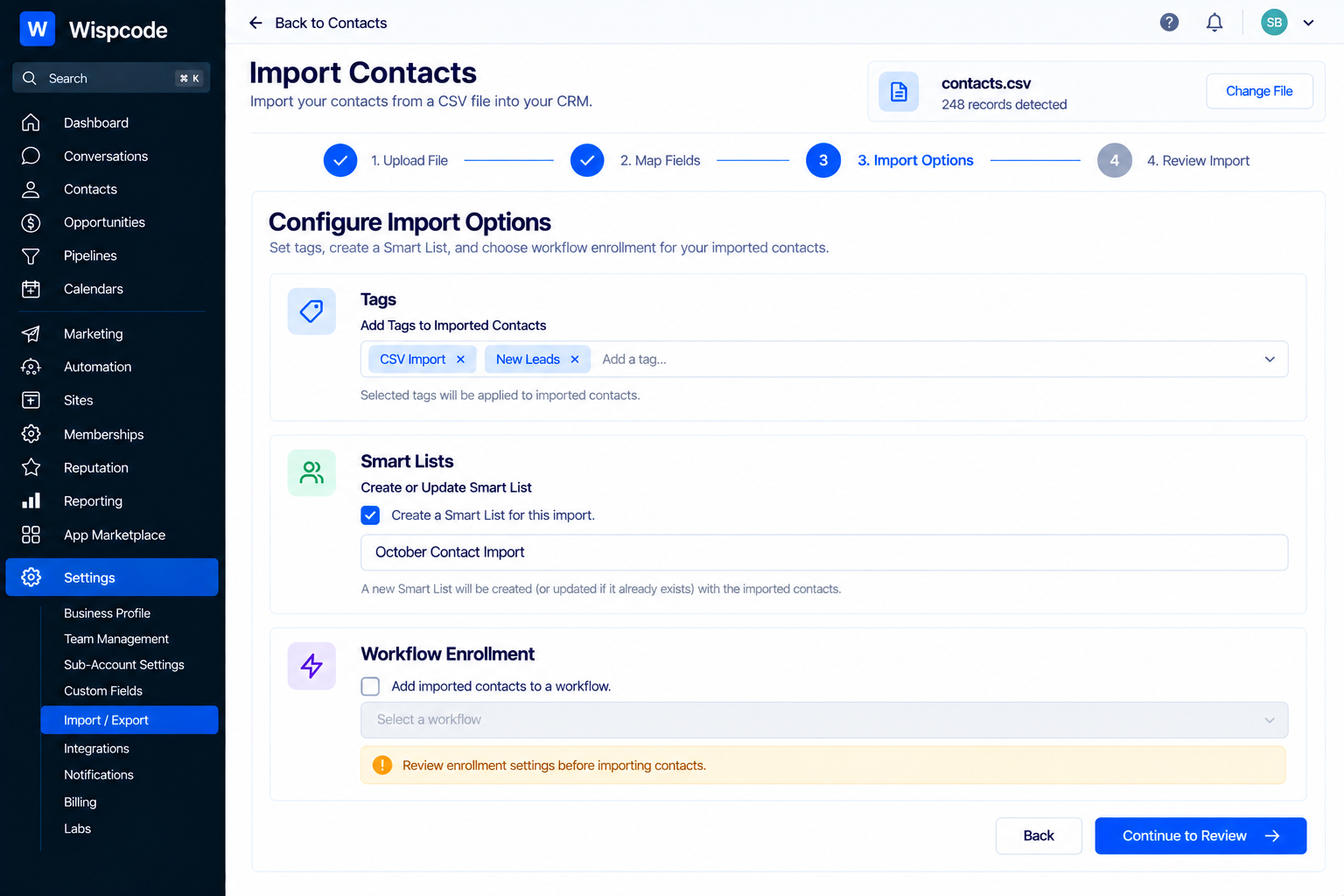
GoHighLevel's import process can include optional actions such as adding imported contacts to a workflow, applying tags, or creating a Smart List.
This can be useful, but it also means you should think carefully before enabling automation during an import.
Imagine importing 5,000 historical contacts and accidentally enrolling them in a workflow designed for newly generated leads.
That could produce unwanted communication or operational activity.
Before adding contacts to a workflow, confirm:
What triggers the workflow?
What messages will be sent?
Are historical contacts supposed to receive them?
Are there existing conditions that protect older records?
Should the workflow be activated after the import instead?
Treat workflow enrollment as a separate decision from data migration.
Verify the Import After Completion
Your audit does not end when the import button is clicked.
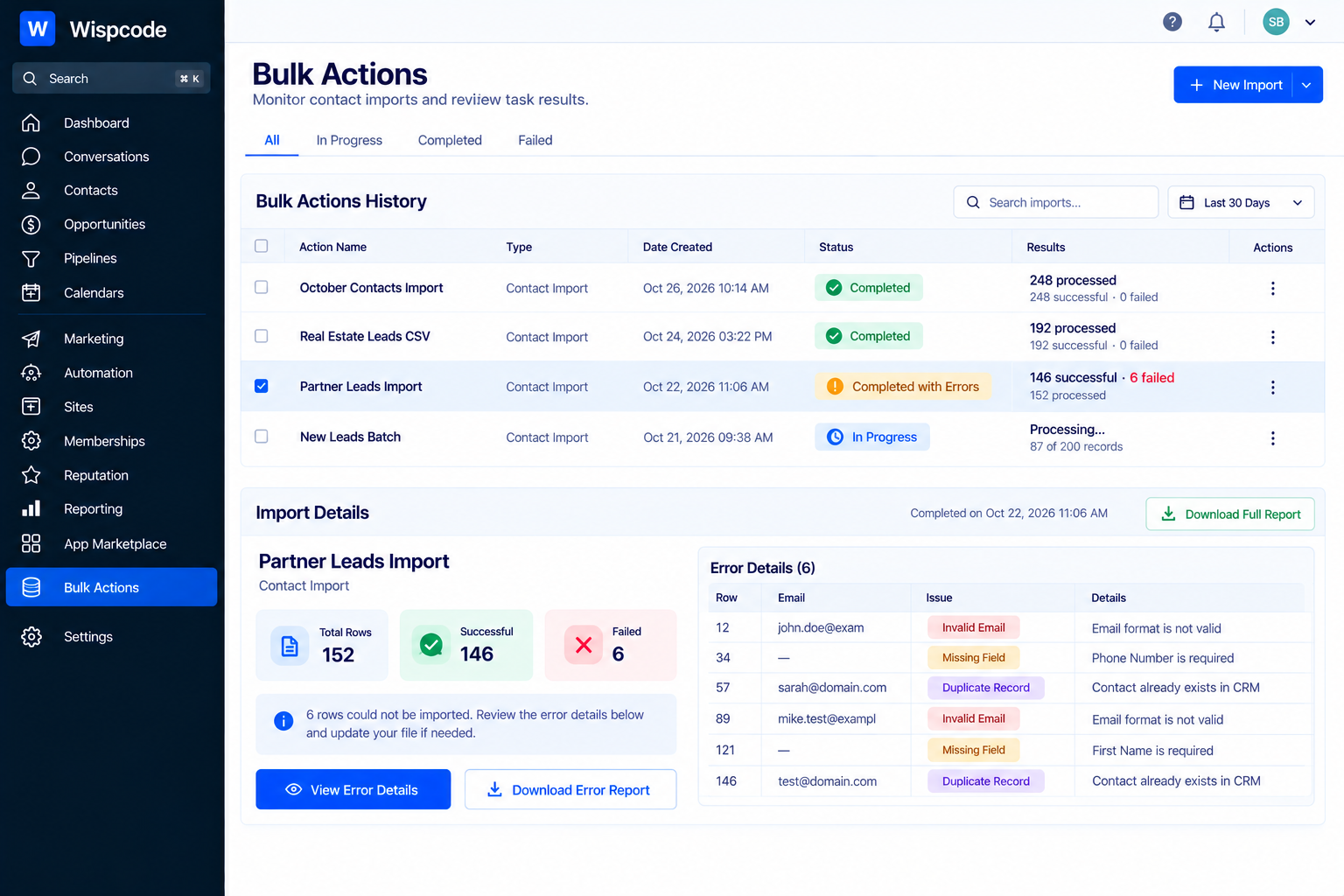
GoHighLevel provides import monitoring through Bulk Actions, where you can review import status and statistics and inspect error information.
After the import, verify:
Number of successful records
Failed records
Field mapping
Tags
Contact ownership
Custom-field values
Duplicate handling
Workflow enrollment
Smart Lists, if created
If errors occur, review the error log, correct the affected rows, and re-import only the necessary records rather than blindly uploading the entire original file again.
A Simple Pre-Import Audit Checklist
Before importing contacts into GoHighLevel, use this checklist:
Data Quality
Remove duplicate records
Check missing names, emails, and phone numbers
Correct invalid email addresses
Standardize phone numbers
Remove obsolete or irrelevant records
CSV Structure
Use a proper header row
Keep one logical field per column
Remove unnecessary columns
Standardize dates
Standardize dropdown and multi-select values
GoHighLevel Preparation
Identify standard fields
Create required custom fields
Standardize tags
Verify contact owners
Decide how existing contacts should be matched
Import Planning
Keep an untouched backup
Test with a small sample
Review field mapping
Decide whether tags should be added
Decide whether contacts should enter a workflow
Plan post-import verification
Common Mistakes to Avoid
The biggest mistake is assuming that a CSV file is ready simply because it opens correctly in Excel or Google Sheets.
A file can look perfectly normal while still containing duplicate contacts, inconsistent values, incorrect formatting, or columns that do not map correctly.
Other common mistakes include:
Importing everything without reviewing it: Old and irrelevant records can make your CRM harder to manage.
Ignoring duplicate data: Similar records can complicate segmentation and reporting.
Creating custom fields after importing: Decide your data structure before the migration whenever possible.
Using inconsistent tags: Different names for the same concept create unnecessary clutter.
Automatically enrolling every imported contact into workflows: Historical contacts may not belong in new-lead automation.
Skipping the test import: A small test can reveal mapping problems before they affect thousands of records.
Frequently Asked Questions(FAQ's)
1. Why should I audit contacts before importing them into GoHighLevel?
Auditing helps identify duplicate, incomplete, inaccurate, or poorly formatted records before they enter your CRM, resulting in cleaner contact data and fewer problems with automation and segmentation.
2. What contact information should I check before a GoHighLevel import?
Review names, email addresses, phone numbers, tags, custom fields, ownership, and other important data. Make sure values are consistent and that required information is available where needed.
3. How can I prevent duplicate contacts during a GoHighLevel import?
Review your source file for duplicate email addresses and phone numbers before importing. During the import, carefully configure the available contact-matching options so existing records are handled appropriately.
4. Should I test my contact import before importing the entire database?
Yes. A small test import can help you verify field mapping, custom-field values, tags, ownership, and other settings before processing a larger contact list.
5. Can imported contacts be added to GoHighLevel workflows automatically?
Yes, GoHighLevel's import process can provide options to add imported contacts to a workflow. However, review the workflow carefully first to make sure historical contacts will not receive unintended messages or enter an inappropriate automation
Conclusion
A successful GoHighLevel contact import starts before you open the import screen.
The most effective approach is to treat contact migration as a "data-quality project", not simply a file-upload task. Review the records, remove duplicates, standardize important fields, prepare your custom fields, organize your tags, and carefully plan how existing contacts should be matched.
Then test the process with a small sample before committing to the full import.
GoHighLevel provides tools to map, update, organize, and monitor imported contact data, but the quality of the source data still matters.
When your contact records are properly audited first, the result is more than a successful import. You start with a CRM that is cleaner, easier to segment, easier to automate, and much easier to maintain over time.
Need Expert Help with GoHighLevel?
New to GoHighLevel and ready to get started? Buy your GoHighLevel account here and launch with confidence.
Already know what you need and want our team to handle everything, from complete setup and customization to funnels, workflows, automations, CRM, and pipelines? Click here.



