

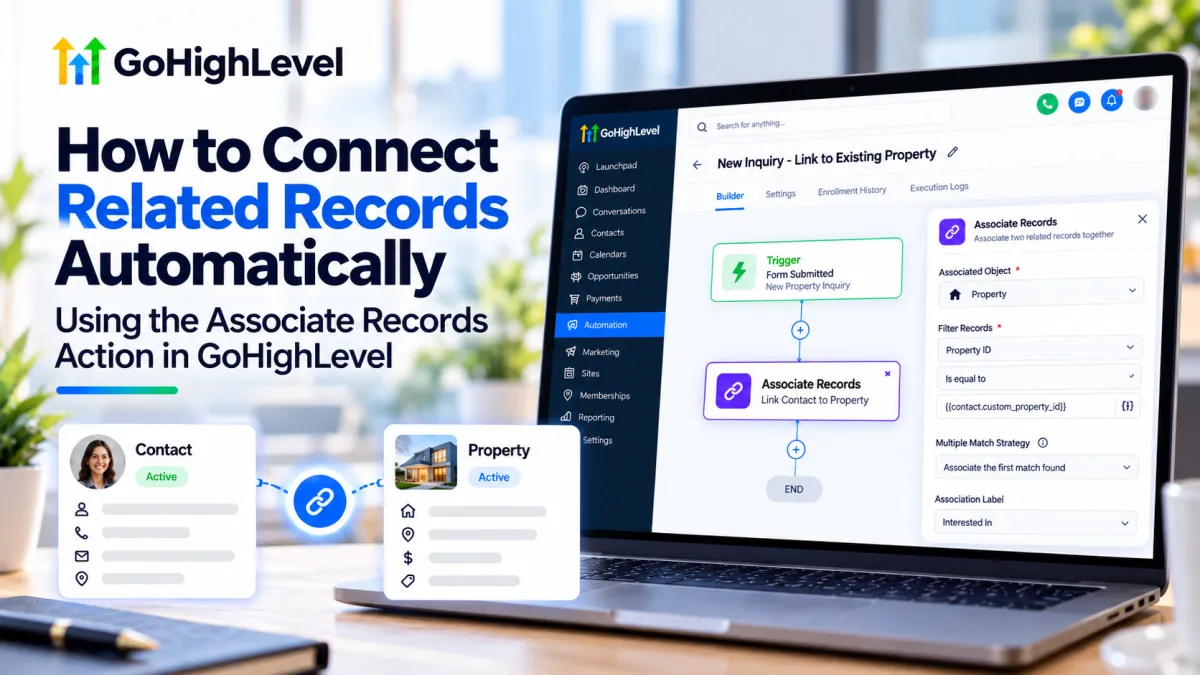
How to Connect Related Records Automatically in GoHighLevel
How to Connect Related Records Automatically Using the Associate Records Action in GoHighLevel
A contact can be interested in a property, work for a particular company, or be connected to another person in your CRM. If those records are not linked, your team may have to search manually to understand the relationship.
GoHighLevel’s Associate Records workflow action can create those links automatically. It searches for existing records using filters you configure, then associates records that match. The match criteria matter: a broad filter can connect the wrong records, while missing information can leave a valid relationship undiscovered. Used carefully, the action helps keep related CRM data connected without asking staff to make every link by hand.
What the Associate Records action does
An association is a structured relationship between two CRM records. For example, a Contact can be associated with a Company, or a buyer Contact can be associated with a Property custom object. An association label describes the connection, such as “Potential Buyer.”
When a record enrolls in a workflow, Associate Records searches another object type for records that meet the filters you set. It then creates an association using the label and matching strategy you choose. It does not create the target record; that record must already exist. Available objects depend on the workflow type and the association setup in your sub-account.
As of HighLevel’s current documentation, the action is a Beta feature. It must be enabled under Settings → Labs before you can use it. Because Beta features can change, confirm the action and its current options in your account before building a process that depends on them.
When it can help
Associate Records is useful when your CRM already contains records that need to be connected according to consistent business rules. A real estate agency, for example, might want to link buyers to properties that match their preferences. A team could also link a Contact to a Company using a reliable field shared between the records.
The action supports Contacts, Companies, Opportunities, and Custom Objects, depending on the workflow and configured associations. Its filters can use fixed values or merge fields from the record that triggered the workflow. For example, a Property’s City can be compared with the enrolled Contact’s preferred city.
The key distinction is that the action performs the association, while your workflow supplies the timing and matching rules. The trigger determines when the action runs; the filters determine which records qualify.
How to configure it in a workflow
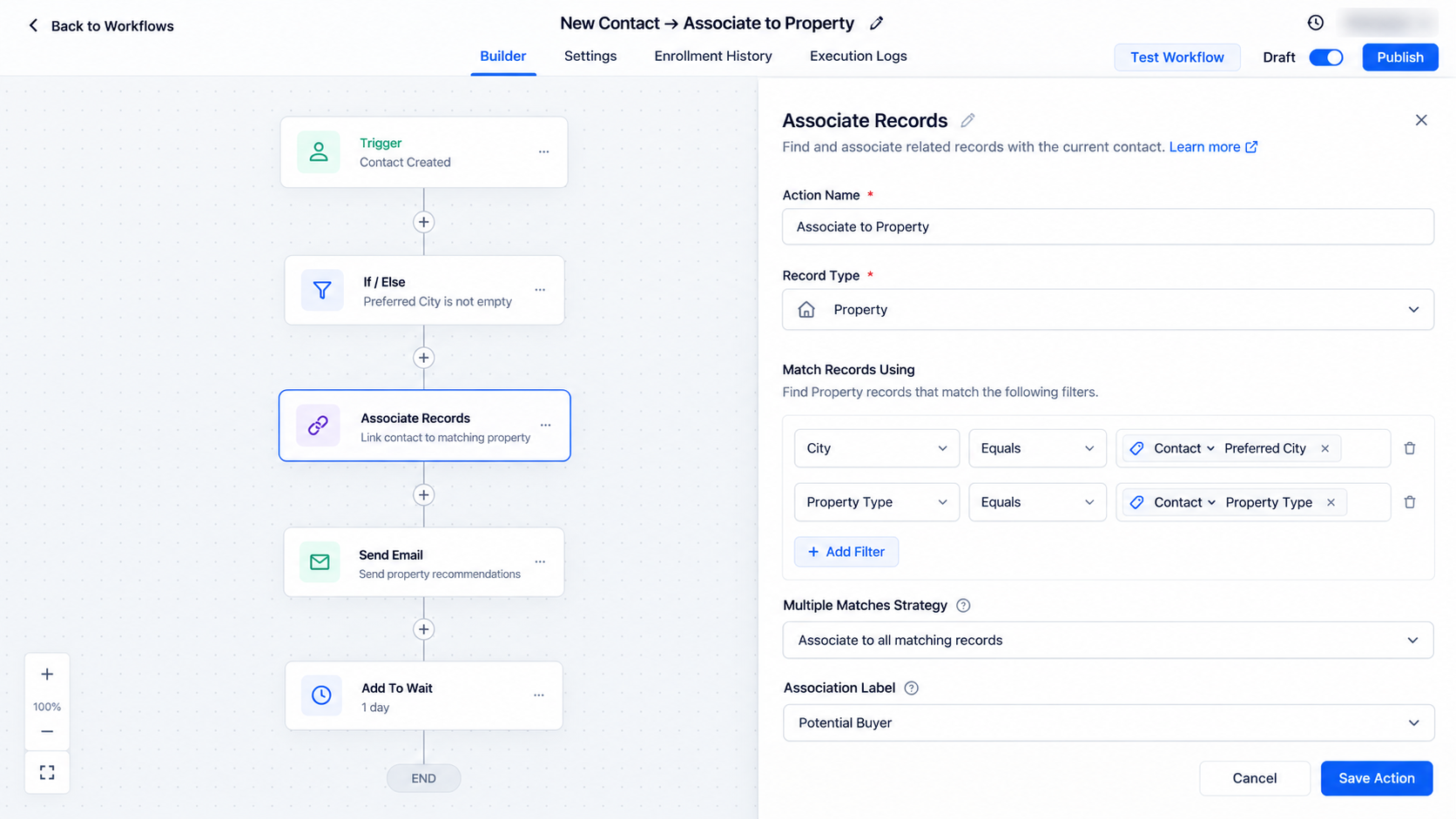
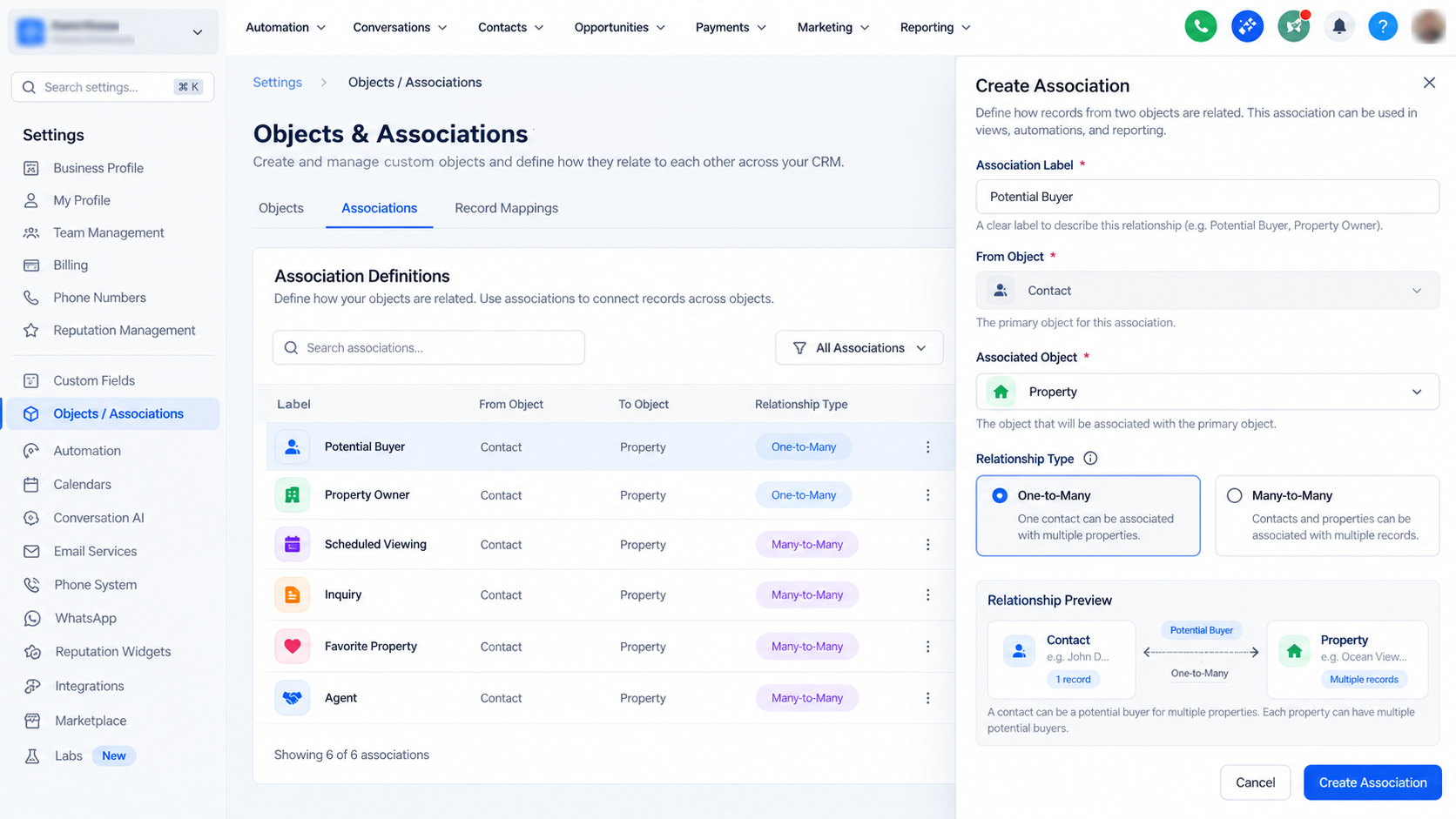
First, make sure the records and the association definition are in place. In your sub-account’s association settings, confirm that the two object types can be linked and that an appropriate label exists. Enable the Beta action in Labs, then open or create a Contact, Company, or Custom Object workflow.
Add the Associate Records action from the Associations category. Choose the object type to search, then add at least one field-value filter. You can use additional filters to narrow the match. All filters use AND logic, which means a target record must meet every condition to qualify.
Next, choose what should happen if more than one target record matches: associate all matches, the earliest created match, or the latest created match. These options are based on record creation time, not on which record is the best business fit. Select an existing association label, save the action, and publish the workflow.
Example: connect a buyer to matching properties
Suppose an agency stores listings in a Property custom object. A buyer submits a preferred city and property type, and the agency wants to link the buyer to matching listings already in the CRM.
Prepare the relationship. Confirm that Property records exist and that the Contact-to-Property association and a suitable label, such as “Potential Buyer,” are configured.
Choose the workflow trigger. Create a Contact workflow that starts when a new buyer is added, or use the applicable trigger for your intake process. Add checks so the buyer’s city and property type are available before the matching action runs.
Set the filters. Add Associate Records and select Property as the object to associate with. Set the Property’s City to equal the Contact’s preferred city, and its Property Type to equal the Contact’s preferred type. With AND logic, a property must match both preferences.
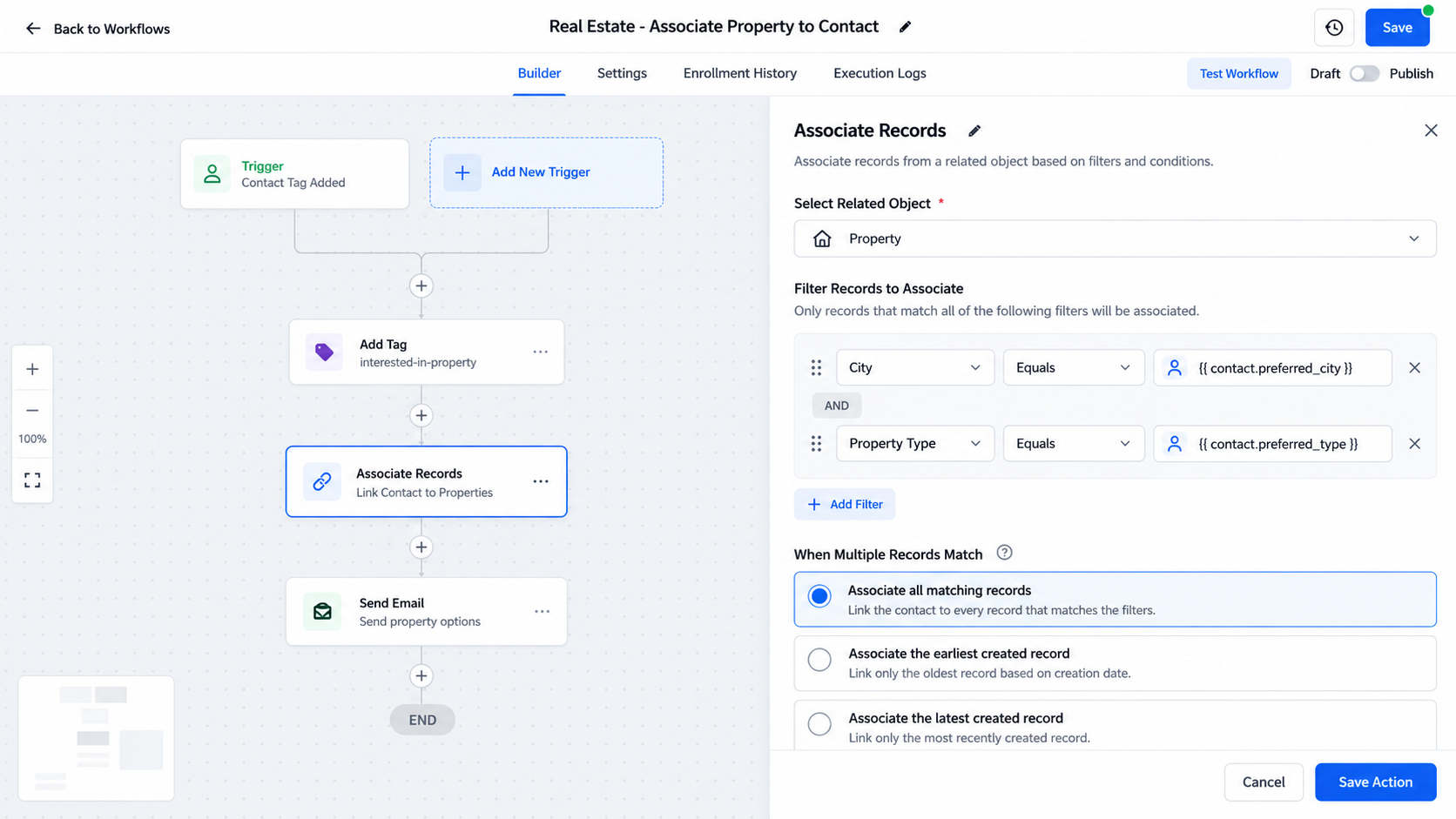
Use multiple AND-based filters to identify matching records and choose how the workflow handles multiple results. Choose the association behavior. Select “all matching records” if the buyer should be connected to every property that meets both filters. If only one match is intended, choose earliest or latest only when record age is a meaningful way to resolve multiple matches. Select the “Potential Buyer” label, save the action, and publish the workflow.
Check the result. Test with a buyer whose preferences match a known Property record. Open the contact and check its Associations or Related Objects area to confirm that the intended property appears with the expected label. HighLevel’s action guide also identifies Contacts → Associations as a place to view associations.
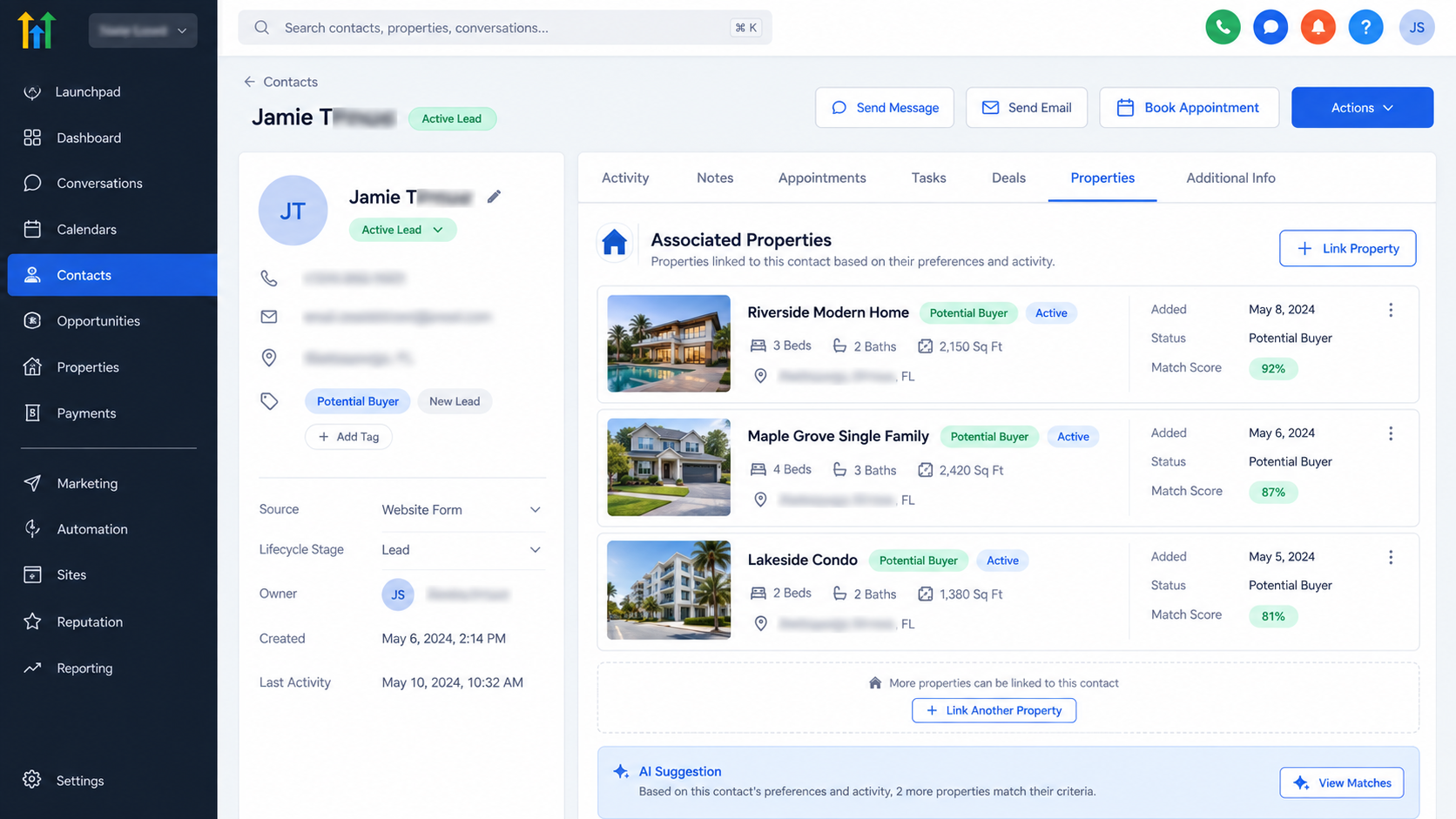
After the workflow runs, linked records can be reviewed from the contact’s Associations or Related Objects area.
If no records match the filters, HighLevel says the action completes without creating an association and the workflow continues. If the Contact’s preferences later change, the existing association is not automatically re-evaluated just because those fields changed. You can use another workflow trigger to run the matching process again when relevant fields are updated.
Best practices and common mistakes
Choose matching fields that are reliable and specific. A name or city alone may match multiple records. Email, customer ID, or another stable identifier can be a better choice when it exists on both records and is appropriate for your use case.
Think through the multiple-match setting before publishing. “All” can be right for a buyer considering several properties, but wrong when a Contact should belong to only one Company. Also confirm that the association label describes the relationship clearly and that any configured relationship limits allow the intended links.
Common setup mistakes include forgetting to configure the association between object types, selecting a label that does not fit the relationship, leaving a required value blank, and assuming multiple filters work as alternatives. They do not: every filter must pass. Test with known records before relying on the workflow broadly.
Troubleshooting
If a record does not associate, check that the workflow is published, the action is enabled in Labs, and the enrolled record reached the action. Verify that the target record exists and that the selected object and label are available in your sub-account. Compare the actual field values and confirm that every filter matches. If the wrong record is selected, make the criteria more specific or reconsider whether earliest, latest, or all matches fits the process. Also review any association limits configured for the label.
Conclusion
Use Associate Records when you need a workflow to find existing records through dependable filters and link them with a configured label. Define a precise match, account for multiple results, and test the relationship in a sample workflow. If the target record does not yet exist or the right match is unclear, address that first; an association is only as useful as the records and rules behind it.
Frequently Asked Questions
1. What does the Associate Records action do in GoHighLevel?
The Associate Records workflow action finds existing CRM records that match your configured filters and automatically creates an association between them. It can be used with Contacts, Companies, Opportunities, and supported Custom Objects.
2. Does Associate Records create a new record?
No. The target record must already exist in GoHighLevel. The action only finds matching existing records and links them to the record enrolled in the workflow.
3. Is the Associate Records action available to all GoHighLevel users?
HighLevel currently documents Associate Records as a Beta workflow feature. It may need to be enabled under Settings → Labs before it appears in the workflow builder.
4. What happens if more than one record matches the filters?
You can configure the action to associate all matching records, the earliest-created matching record, or the latest-created matching record.
5. Can I use multiple filters when matching records?
Yes. You can add multiple field-based filters. The filters use AND logic, so every configured condition must match before a record qualifies for association.
6. Can I use dynamic values from the contact in the filters?
Yes. Associate Records supports merge fields from the enrolled record. For example, you can compare a Property's City with a Contact's Preferred City.
Need Expert Help with GoHighLevel?
New to GoHighLevel and ready to get started? Buy your GoHighLevel account here and launch with confidence.
Already know what you need and want our team to handle everything, from complete setup and customization to funnels, workflows, automations, CRM, and pipelines? Click here.



