

How to Use the Array Formatter in GoHighLevel
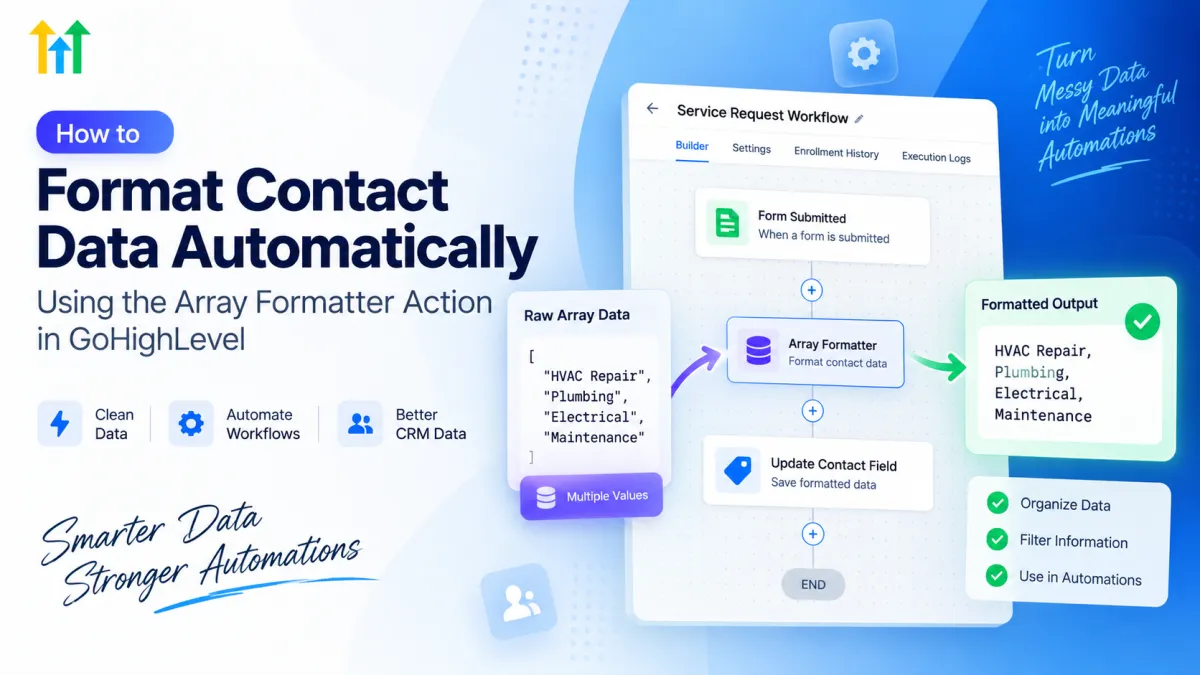
How to Format Contact Data Automatically Using the Array Formatter Action in GoHighLevel
Contact data does not always enter an automation in a clean, ready-to-use format.
A form may contain multiple selections. A webhook might return several products, services, or customer attributes at once. An integration may send information as a list rather than a single value. The data is technically available, but using it directly in notifications, CRM updates, or later workflow steps can quickly become difficult.
Manually cleaning that information defeats the purpose of automation.
The GoHighLevel Array Formatter helps solve this problem by working with array-based, or list-style, data inside workflows. Instead of immediately sending structured data elsewhere for processing, you can prepare useful values before the workflow continues.
What Is the Array Formatter Action in GoHighLevel?
An array is simply a collection of values grouped together.
For example, instead of receiving one service such as:
HVAC Repair
a workflow might receive a collection containing HVAC Repair, Plumbing, and Electrical Service.
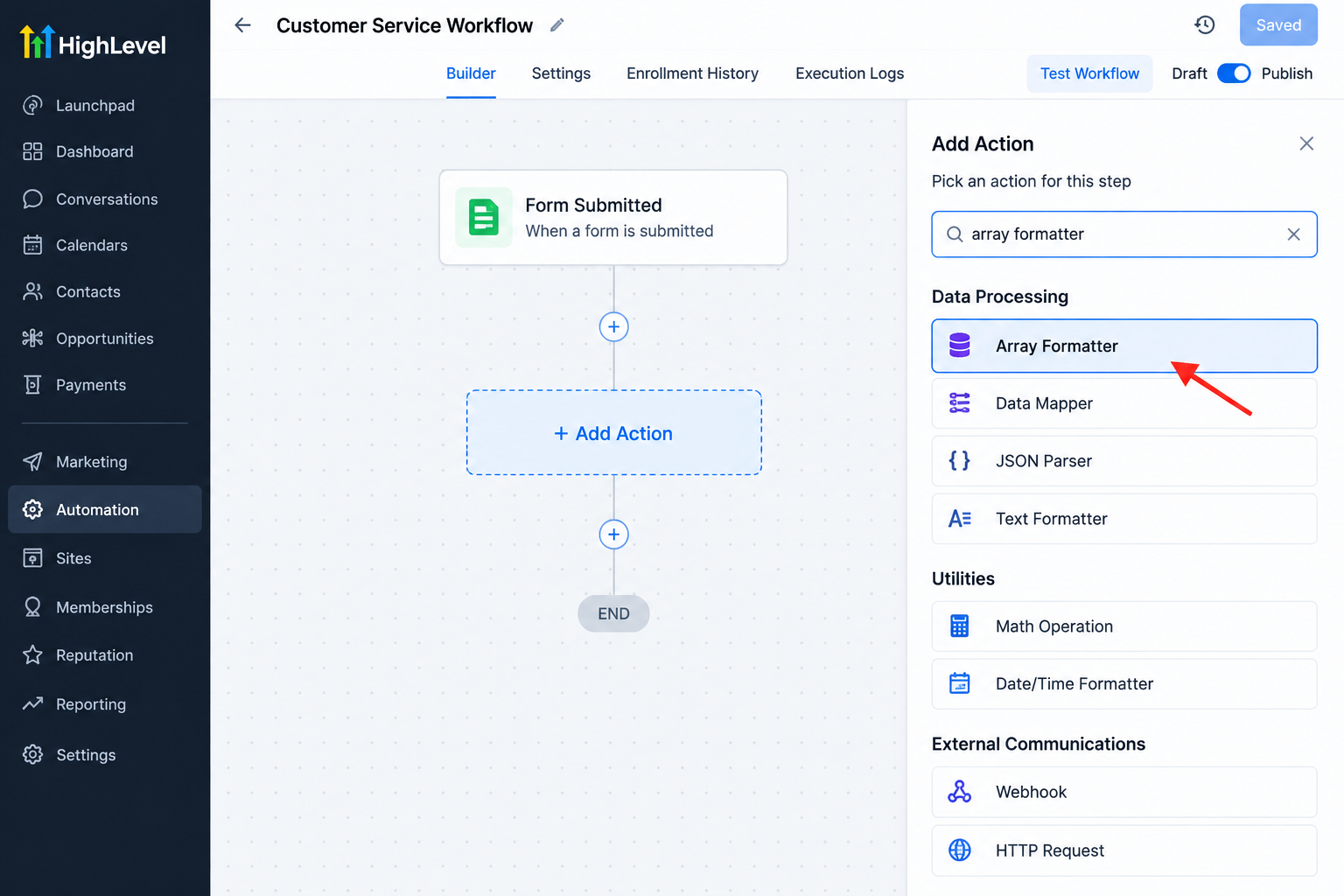
The Array Formatter action in GoHighLevel is designed to work with these collections. HighLevel currently supports operations such as finding an item, finding an item by its position, filtering items, rebuilding line-item arrays, and performing calculations on numerical array values.
The important distinction is that Array Formatter processes the data. It does not automatically send an email, update a contact field, create workflow branches, or perform external API requests. Those tasks require the appropriate workflow actions afterward.
Why Contact Data Often Needs Formatting
Many automations work perfectly when they receive a single value such as a name, email address, or phone number. Things become more complicated when one step returns several related values.
This can happen with:
Form or survey responses
Inbound webhook data
Product or service information
Multi-value selections
Order line items
Data returned by external integrations
For example, an integration may return several purchased products. Your workflow might only need products from one category, the first matching item, or a reconstructed list for another system.
Raw information may be technically correct while still being inconvenient for the next automation step.
How the Array Formatter Fits Into a GoHighLevel Workflow
A typical workflow might look like this:
Trigger → Receive Array Data → Array Formatter → Use Output → Continue Workflow
The Array Formatter sits between the source of the structured data and the action that needs the processed result.
HighLevel notes that array data can come from sources such as Shopify triggers, inbound webhook triggers, and custom webhook response data. Once the formatter runs successfully, its returned value can be referenced by later workflow actions.
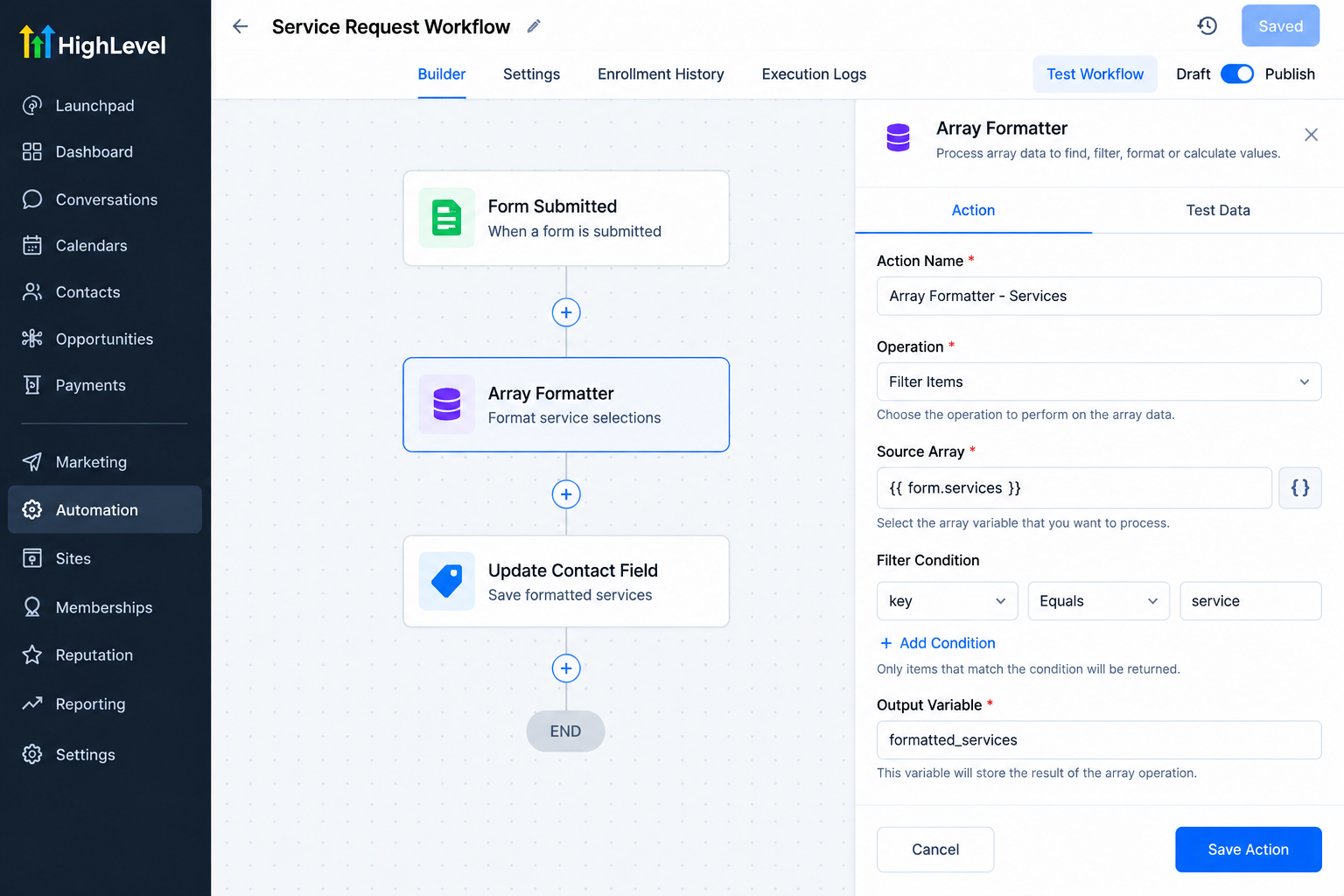
This makes the workflow easier to organize because each action has a specific responsibility.
Practical Uses for GoHighLevel Contact Data Formatting
Filter Relevant Information
Suppose an integration returns multiple items associated with a customer. If only certain items meet your criteria, a filter operation can return the matching objects rather than forcing later steps to work with the entire collection.
Find a Specific Item
If you know what value you are looking for, the Find function can locate the first matching object based on a key and value.
This can be useful when checking structured order or integration data for a particular product or attribute.
Prepare Data for Internal Notifications
Sales representatives usually do not want to inspect raw structured data.
Processing the relevant array first can make it easier to reference the required information in a later internal notification action. The notification itself is still handled separately.
Prepare Data for Another System
The Line Items option can reconstruct an array with selected key-value pairs. HighLevel specifically describes this as useful when preparing data for destinations such as custom webhooks, Google Sheets, or supported shopping-cart structures.
Calculate Values From Numeric Arrays
When an array contains numbers, Array Formatter can perform operations including Sum, Minimum, Maximum, Average, and Count.
That makes it useful when the workflow needs a calculated result from a collection rather than every individual number.
Example: Formatting Service Information
Imagine a home services business receives structured data containing several requested services:
HVAC Repair
Plumbing
Electrical Service
After the workflow trigger receives this data, the business first needs to determine what information is actually required downstream.
An Array Formatter action in GoHighLevel could be used to locate or filter relevant items from the array.
The returned result could then be referenced by another workflow action for example, an internal notification, another data-processing step, or a webhook.
If the business needs that information saved permanently to a contact record, it must use the appropriate CRM field update action afterward. Array Formatter does not update the contact simply because it processed the data.
Why Better Data Formatting Improves Automation
Well-structured data makes workflows easier to understand and maintain.
Instead of passing large collections of unnecessary information through every step, you can extract or transform what later actions actually need.
This can lead to cleaner CRM processes, clearer internal notifications, fewer manual cleanup tasks, and more predictable downstream automation.
It also makes troubleshooting easier because you can identify where information enters the workflow, where it is processed, and where the resulting output is used.
Common Mistakes to Avoid
One common mistake is assuming that every field containing several words or choices is automatically an array. Always inspect the original data structure first.
Other mistakes include selecting the wrong source array, formatting information without knowing what the next action expects, and assuming the output automatically updates the contact record.
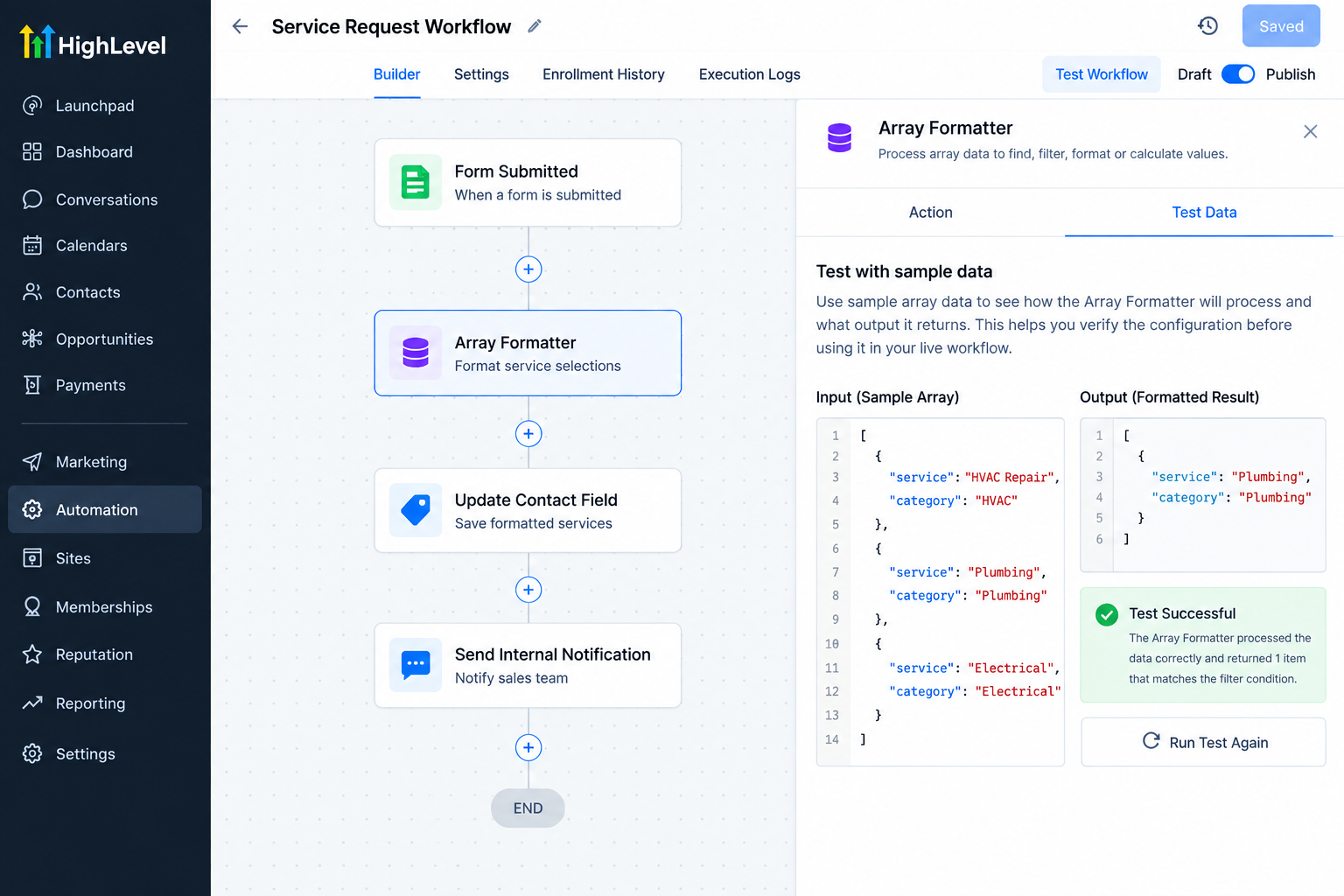
Do not forget to test empty arrays, single-item arrays, and records containing several items.
Also avoid building complicated formatter logic when a simpler workflow action already solves the problem.
Best Practices for GoHighLevel Array Formatter
Start by understanding exactly what the incoming data contains. Then determine what the next workflow action actually needs.
Use realistic test records rather than relying on assumptions. Give formatter actions descriptive names, especially when a workflow contains several data-processing steps.
Keep the logic as simple as possible and test the returned output before connecting it to important CRM updates, communications, or external systems.
Conclusion
Reliable automation depends on more than simply moving contacts from one workflow action to another. The data being passed between those actions must also be usable.
The GoHighLevel Array Formatter is particularly valuable when workflows receive arrays containing multiple objects, values, line items, or numerical data that need to be found, filtered, reconstructed, or calculated before later steps can use them.
Used correctly, it provides a practical way to improve GoHighLevel data formatting while keeping each workflow action focused on the job it is actually designed to perform.
Frequently Asked Questions
1. What is the Array Formatter action in GoHighLevel?
The Array Formatter action helps process array or list-style data inside GoHighLevel workflows. It can be used to find, filter, restructure, or calculate values from grouped data before that information is used in later workflow steps.
2. When should I use the Array Formatter in GoHighLevel?
Use it when a workflow receives multiple values or structured data from sources such as webhooks, integrations, products, line items, or multi-value responses and you need to prepare that data for another workflow action.
3. Can the Array Formatter update contact fields automatically?
No. The Array Formatter processes and returns data, but updating a contact field requires a separate workflow action. You can use the formatted output in the appropriate contact update action afterward.
4. Can I use Array Formatter output in emails or SMS messages?
The Array Formatter itself does not send messages. However, its processed output can potentially be referenced by later workflow actions where supported, such as notifications or other automation steps.
5. What are common mistakes when using the GoHighLevel Array Formatter?
Common mistakes include choosing the wrong source data, assuming every multi-value field is an array, not testing empty or single-item arrays, and forgetting to use the formatter’s output in the next workflow action.
Need Expert Help with GoHighLevel?
New to GoHighLevel and ready to get started? Buy your GoHighLevel account here and launch with confidence.
Already know what you need and want our team to handle everything, from complete setup and customization to funnels, workflows, automations, CRM, and pipelines? Click here.



