

Use of Appointment Booking AI Action in GoHighLevel: Step-by-Step Guide
How to Automate Appointment Booking with the Appointment Booking Conversation AI Bot Action in GoHighLevel
Introduction
Appointment scheduling can become a surprisingly time-consuming part of lead management. A prospect asks about your service, wants to know when someone is available, chooses a time, and expects the appointment to be booked without unnecessary back-and-forth.
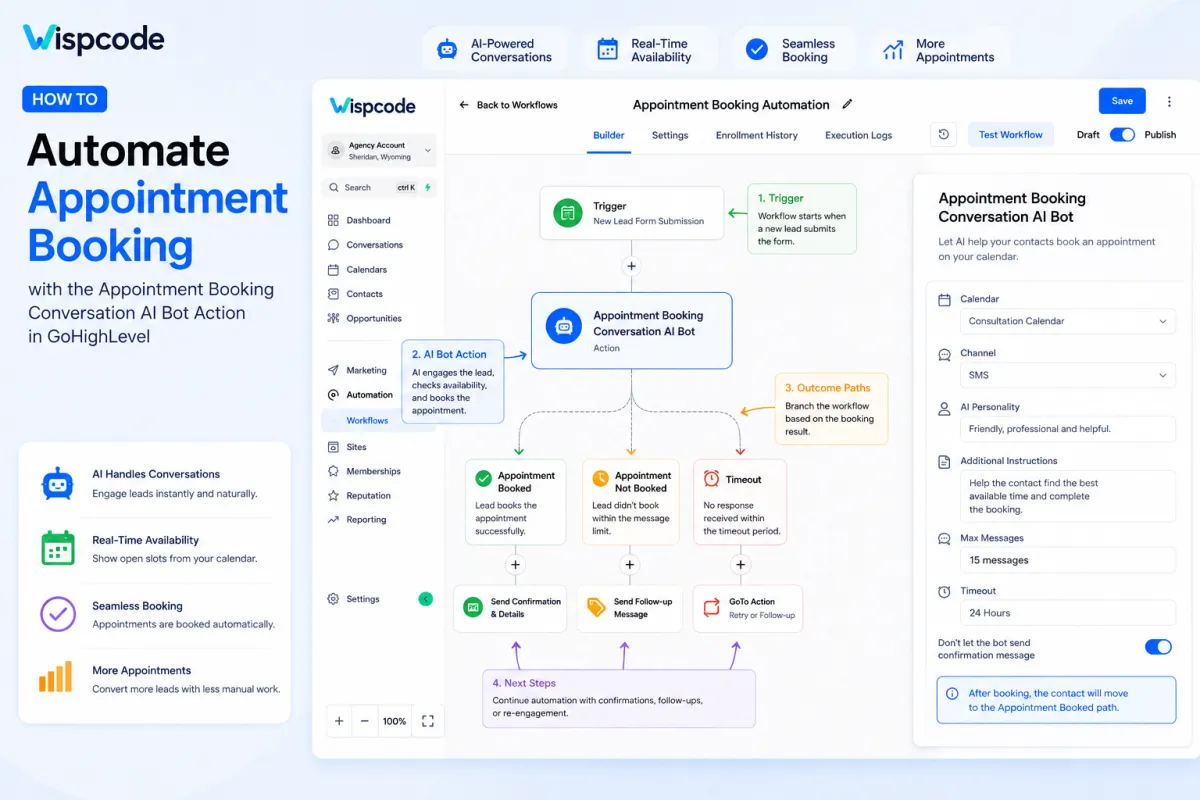
GoHighLevel can automate much of this process with the Appointment Booking Conversation AI Bot Action. Instead of relying entirely on a team member to respond to every scheduling request, this workflow action allows Conversation AI to communicate with a contact, suggest available appointment times from a selected calendar, and complete the booking when the contact chooses a suitable slot.
In this guide, you'll learn what the Appointment Booking Conversation AI Bot Action does, how to configure it, how its branches work, and how to build a practical appointment-booking automation in GoHighLevel.
What Is the Appointment Booking Conversation AI Bot Action?
The Appointment Booking Conversation AI Bot Action is a GoHighLevel workflow action designed to help automate appointment scheduling through an AI-powered conversation.
Once the action runs, the bot communicates with the contact and attempts to guide them toward booking an appointment on the calendar you selected. The calendar provides the availability, while your instructions and personality settings help determine how the AI communicates with the contact.
The action is particularly useful when a business receives appointment requests through conversational channels and wants to reduce manual scheduling.
For example, a dental clinic could start a workflow when a new lead requests information. The workflow can then hand the conversation to the AI booking action, which helps the contact find an available time for a consultation.
The goal isn't simply to send a calendar link. The AI is designed to have a conversation and work toward completing the booking.
Why Automate Appointment Booking with Conversation AI?
Manual appointment scheduling creates friction.
A potential customer may have to wait for a team member to respond, ask about availability, receive a time suggestion, and continue the conversation until both sides agree on a slot. If the response is delayed, the lead may lose interest.
Appointment booking automation can make that process more efficient.
With the GoHighLevel Conversation AI booking action, you can:
Let AI guide contacts toward an appointment.
Use a specific GoHighLevel calendar for availability.
Give the bot a defined personality and communication style.
Add business-specific instructions.
Set a maximum number of messages for the booking attempt.
Define how long the bot waits for a response.
Route contacts into different workflow branches based on the booking outcome.
Continue automation after a successful booking.
This can be especially valuable for businesses such as agencies, consultants, home-service companies, clinics, real estate teams, and other appointment-driven businesses.
How the Appointment Booking AI Action Works
The basic process is straightforward:
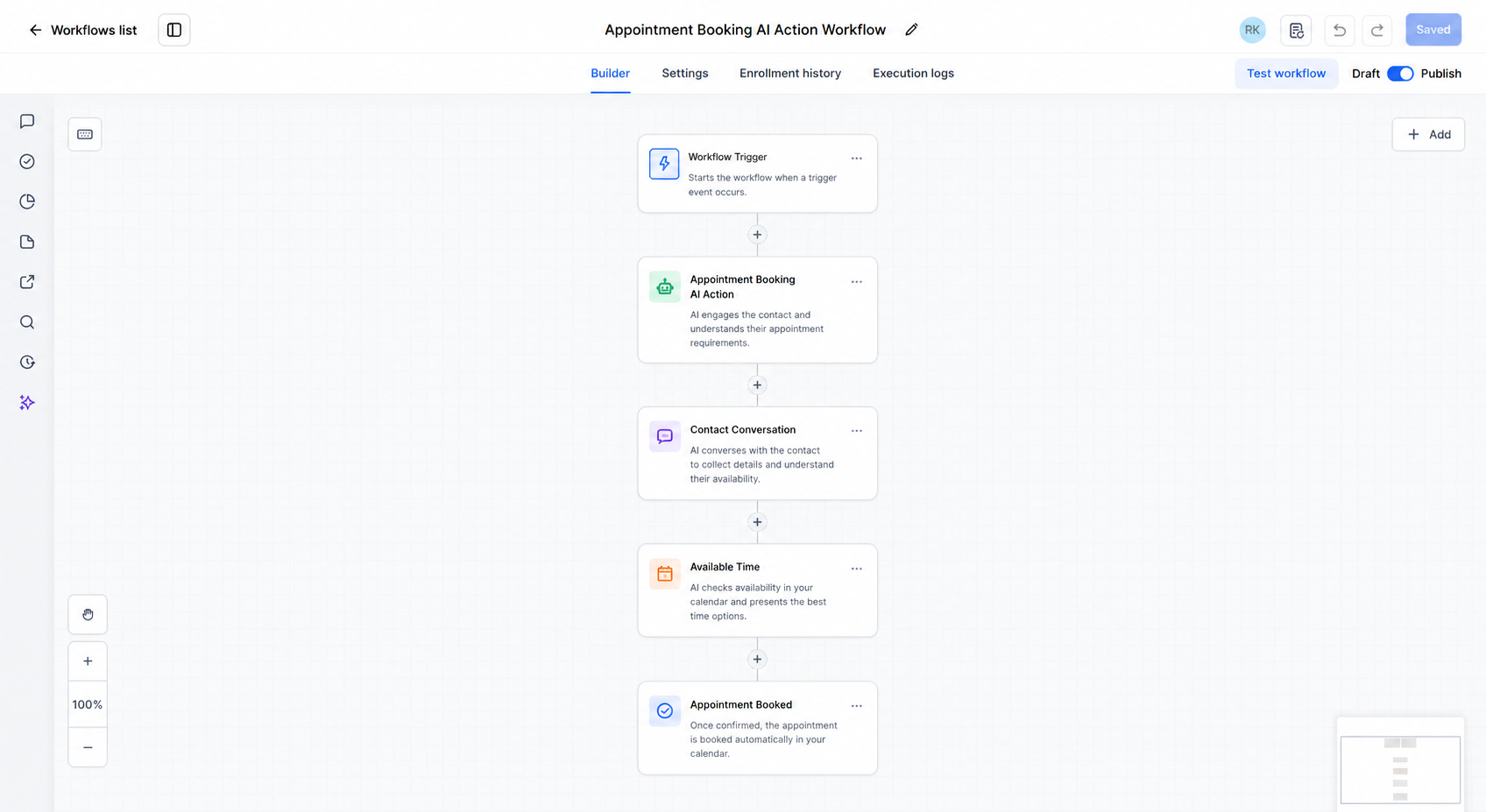
"Workflow Trigger → Appointment Booking Conversation AI → Contact Conversation → Available Time → Appointment Booked"
When the workflow reaches the AI action, the bot communicates with the contact according to the settings you've configured.
The selected calendar is important because GoHighLevel uses that calendar to fetch available slots and present them to the contact. When the contact selects an available time, the appointment is booked on that calendar.
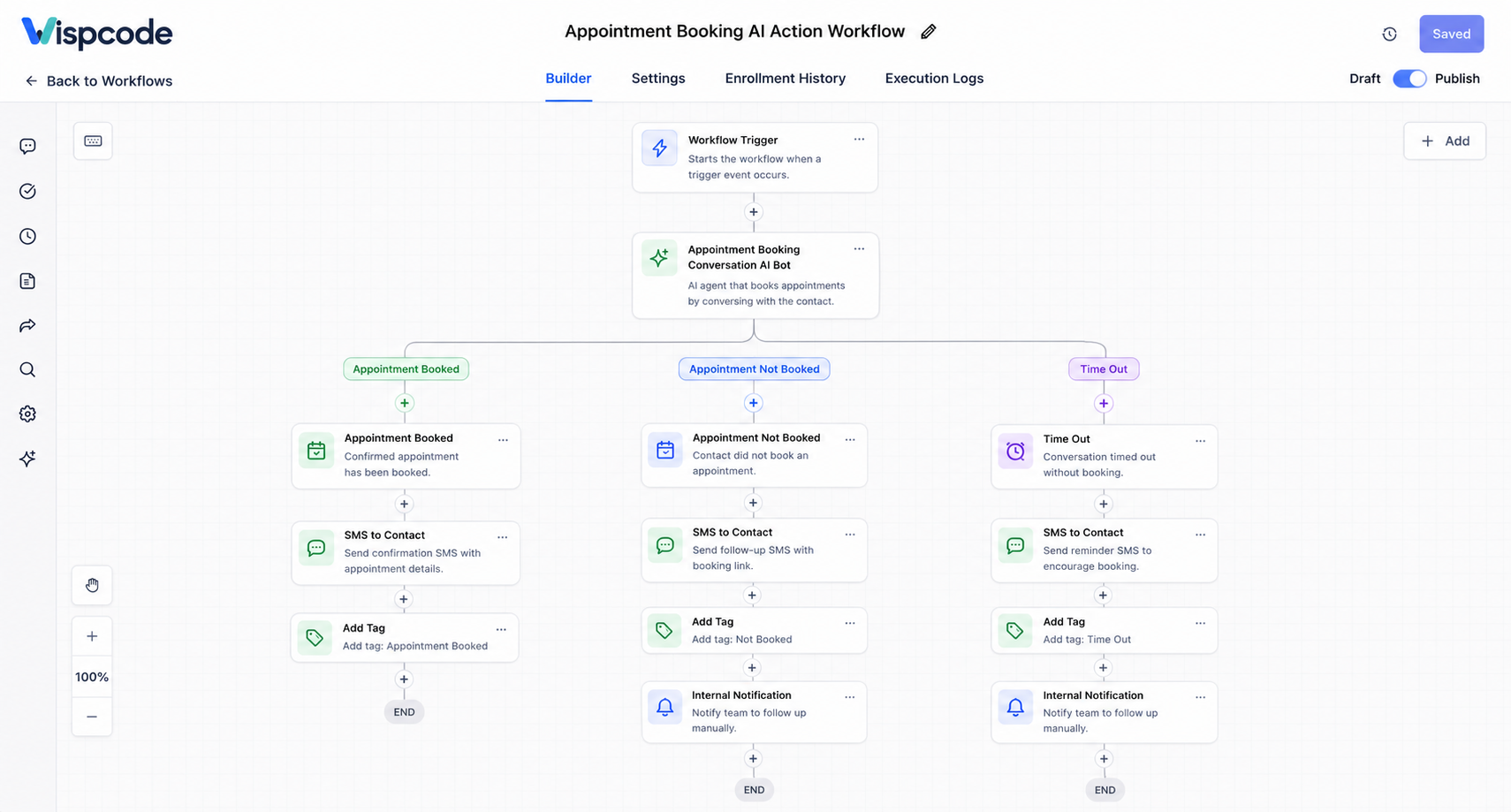
The action also provides outcome paths that allow the rest of your workflow to respond differently depending on what happens during the conversation.
For example:
"Appointment Booked → Send confirmation → Notify team
Appointment Not Booked → Follow-up or human handoff
Timeout → Follow-up or GoTo"
This makes the action more than a simple scheduling tool. It can become part of a larger lead-management workflow.
Step-by-Step: Set Up Appointment Booking Conversation AI in GoHighLevel
Step 1: Prepare Your Calendar
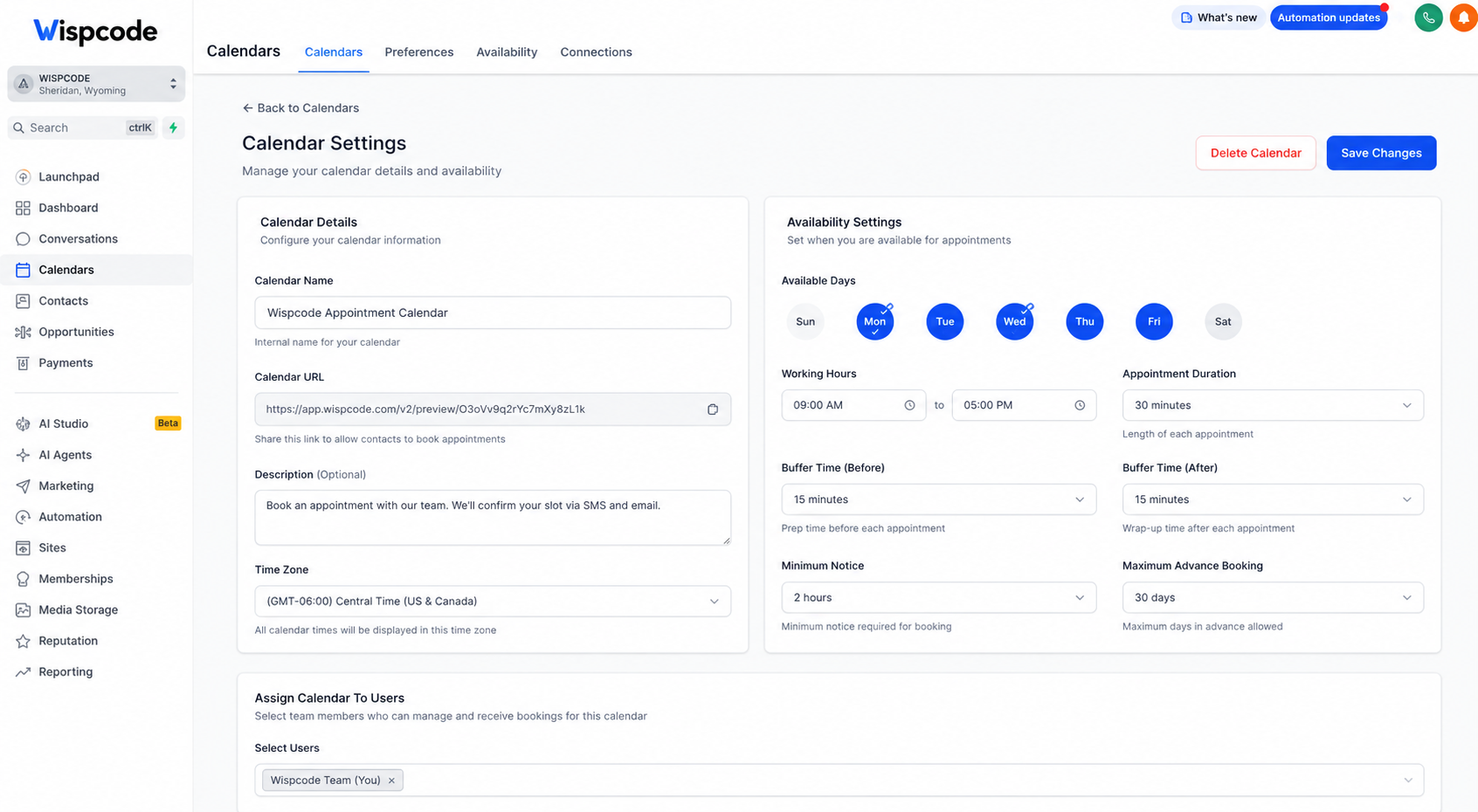
Before adding the AI action, make sure the GoHighLevel calendar you want to use is already configured correctly.
Your calendar determines which appointment availability the AI can use. The selected calendar is where the appointment will ultimately be booked.
Check important calendar settings such as:
Available days and hours
Appointment duration
Assigned team member or user
Availability rules
Time zone
Appointment details
It's worth testing the calendar manually before connecting it to Conversation AI. If the calendar itself is not configured properly, the AI cannot fix those underlying scheduling settings.
Also note that GoHighLevel's documentation specifically states that recurring calendars are not supported by this workflow action.
Step 2: Create or Open Your Workflow
Go to Automation → Workflows in your GoHighLevel sub-account and create a new workflow or open an existing one.
The trigger you choose depends on your business process.
For example, you might start the workflow when:
A lead submits a form.
A contact receives a specific tag.
A lead enters a particular pipeline stage.
A customer sends a message that starts your appointment process.
The important part is that the contact reaches the Appointment Booking Conversation AI action at the appropriate point in your customer journey.
Step 3: Add the Appointment Booking Conversation AI Action
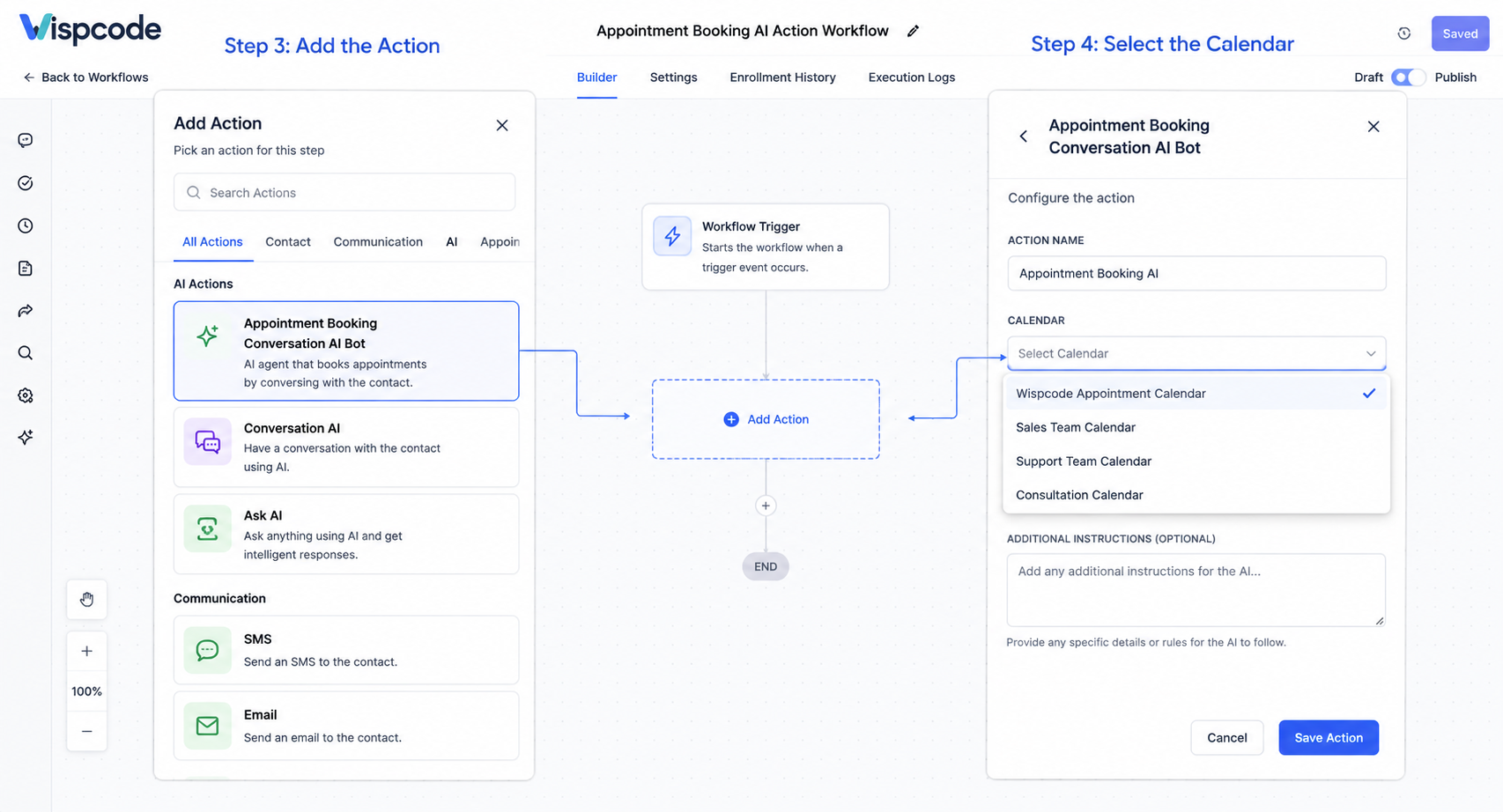
Inside the workflow builder, add an action and select Appointment Booking Conversation AI Bot.
GoHighLevel's workflow action documentation identifies this as the action used to have Conversation AI assist the contact with appointment booking.
You'll then configure the action's main settings.
Step 4: Select the Calendar
The first important setting is the Calendar.
Choose the calendar where the appointment should be scheduled.
The AI uses this calendar to retrieve available slots and offer them to the contact. Once the contact selects a suitable time, the appointment is booked on that calendar.
For example, a marketing agency might select its Discovery Call calendar, while an auto repair business could select its Vehicle Inspection calendar.
Choose the calendar carefully because this directly determines where the appointment will be created.
Step 5: Configure the AI Personality
Next, define how you want the bot to communicate.
The personality setting helps establish the bot's tone and style. GoHighLevel recommends using personality and additional instructions to align the AI conversation with your brand and audience.
For example:
Be friendly, professional, and concise. Help prospects schedule an appointment without sounding pushy.
You could make the tone more formal for a professional consulting company or warmer and more conversational for a local service business.
The key is to keep the instructions clear rather than trying to write an unnecessarily complicated prompt.
Step 6: Add Additional Instructions
The Additional Instructions field lets you provide extra guidance for the AI.
This is where you can explain how you want the booking conversation handled.
For example:
Ask one question at a time.
Keep responses concise.
Help the contact choose from available appointments.
Do not invent appointment times.
Remain professional and helpful.
If the contact needs assistance outside the booking process, follow your defined escalation process.
The instructions should support the booking objective rather than duplicate large amounts of information that already exists elsewhere in your GoHighLevel setup.
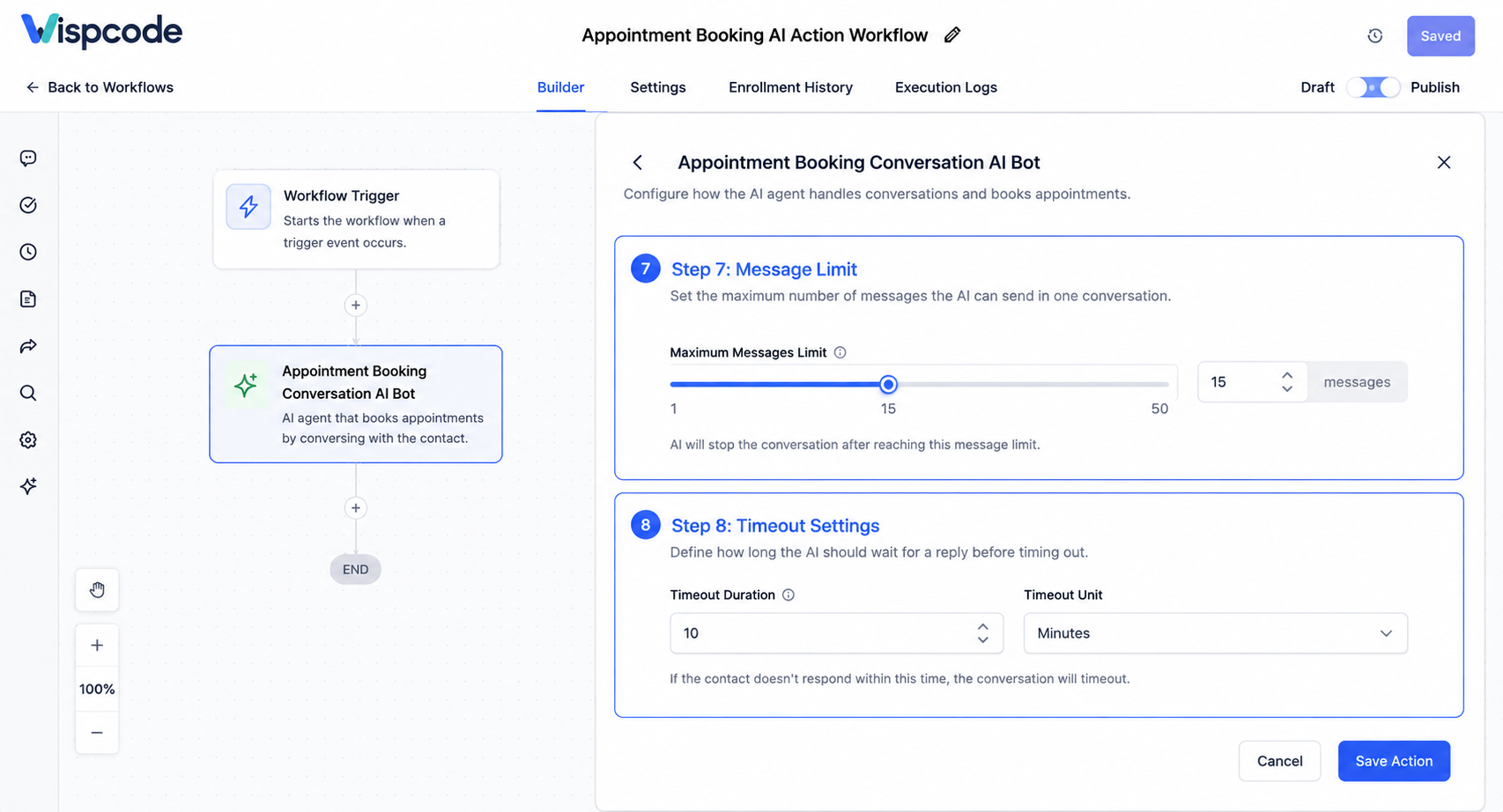
Step 7: Set the Maximum Message Limit
GoHighLevel allows you to define the Maximum Messages Limit for the booking attempt.
According to GoHighLevel's documentation, the minimum is 5 messages, the maximum is 25, and the recommended value is 15. If the AI cannot complete the booking within the configured limit, the contact moves to the Appointment Not Booked branch.
For many businesses, the recommended value provides a reasonable starting point.
You can adjust it based on the complexity of your booking conversation, but avoid making the limit unnecessarily high. A focused scheduling conversation should generally not require an excessive number of exchanges.
Step 8: Configure the Timeout
The Timeout setting determines how long the AI waits for the contact to respond.
You can configure both the timeout value and its unit. GoHighLevel documents minutes, hours, and days as available units. If the contact does not respond within the configured period, the contact moves to the Time Out branch.
For example, if you configure a 24-hour timeout, the workflow can take a different action when the contact does not reply within that period.
GoHighLevel also documents using a GoTo action in the Timeout branch to send the contact back to the same booking action for another follow-up attempt.
Use this carefully to avoid creating repetitive or excessive follow-up loops.
Step 9: Choose the Communication Channel
The workflow action also requires a Channel.
GoHighLevel's documentation for this action lists SMS, Facebook, and Instagram as supported channels.
Choose the channel that matches how the contact is communicating with your business and how your account is configured.
Because channel capabilities can evolve as GoHighLevel updates Conversation AI, always verify the options displayed in your current account before building a process around a specific channel.
Step 10: Configure the Confirmation Message
By default, the AI can send a confirmation message after successfully booking an appointment.
GoHighLevel gives you the option to enable Don't let the bot send confirmation message. If enabled, the bot will not send its own booking confirmation and the contact will move directly into the Appointment Booked branch.
If you disable the AI's confirmation message, make sure you add your own confirmation step in the Appointment Booked branch.
For example:
Appointment Booked → Send SMS → Notify Team → Continue Workflow
This gives you more control over what the customer receives after scheduling.
A Practical Appointment Booking Workflow
Imagine a home-service company wants to automate consultation bookings.
The workflow could look like this:
Trigger: New Lead
↓
Appointment Booking Conversation AI
↓
Appointment Booked
↓
Send Confirmation
↓
Internal Notification
The Appointment Booked branch could send a confirmation message such as:
“Thanks! Your appointment has been scheduled. We look forward to speaking with you.”
An internal notification could then alert the assigned team member.
If the contact does not complete the booking, you could route them through an appropriate follow-up process instead of allowing the lead to disappear.
For example:
Appointment Not Booked → Wait → Follow-Up
And for an inactive conversation:
Timeout → GoTo Booking Action
This structure lets the AI handle the initial scheduling conversation while your workflow manages what happens afterward.
Best Practices for Better AI Appointment Booking
Keep Your Instructions Specific
Avoid vague instructions such as “Book appointments professionally.”
Instead, clearly explain the bot's role, tone, and priorities.
Let the Calendar Control Availability
Do not place static appointment times into the AI instructions. GoHighLevel's current guidance recommends relying on the configured booking setup for availability rather than putting detailed slot information into prompts. Static availability can become inaccurate when the calendar changes.
Keep the Booking Conversation Focused
The primary objective is scheduling. Don't overload the AI with unnecessary instructions that could distract it from that goal.
Test Before Going Live
Run test conversations and verify that:
The AI responds appropriately.
The correct calendar is used.
Available slots are presented correctly.
The appointment is actually created.
The correct workflow branch executes.
Confirmation messaging behaves as expected.
GoHighLevel's newer Conversation AI tools also provide testing capabilities so you can evaluate behavior before deploying the experience to customers.
Plan Your Post-Booking Automation
Booking the appointment should not necessarily be the end of your automation.
Depending on your process, you can trigger additional workflows after an appointment is booked. GoHighLevel supports post-booking workflow actions in its Conversation AI appointment-booking configuration.
This can help connect scheduling with the rest of your customer journey.
Common Mistakes to Avoid
Choosing the Wrong Calendar
If the wrong calendar is selected, appointments may be created in the wrong scheduling system or with the wrong availability.
Making the AI Prompt Too Complicated
More instructions don't automatically produce better conversations. Keep your instructions clear, specific, and relevant.
Ignoring Timeout and Failure Paths
Don't build only the successful booking path. Decide what should happen when a customer stops responding or doesn't complete the booking.
Forgetting Confirmation Messaging
If you disable the AI's built-in confirmation message, remember to create an alternative confirmation step in the Appointment Booked branch.
Skipping Testing
A workflow that looks correct in the builder can still produce an unexpected customer experience. Always test the actual conversation and booking process before launching.
Frequently Asked Questions(FAQ'S)
1. What does the Appointment Booking Conversation AI Bot Action do?
It allows Conversation AI to communicate with a contact and attempt to book an appointment using a selected GoHighLevel calendar. The AI can offer available slots and complete the booking when the contact selects one.
2. How many messages can the AI use for one booking attempt?
The documented range is 5 to 25 messages, with GoHighLevel recommending 15 as a starting value.
3. What happens if the customer stops responding?
If the contact does not respond within the configured timeout period, the contact is sent down the Time Out branch. You can then configure follow-up logic, including a GoTo action when appropriate.
4. Can I stop the AI from sending its own confirmation message?
Yes. You can enable Don't let the bot send confirmation message. When enabled, the contact moves into the Appointment Booked branch after the booking instead of receiving the AI's default confirmation message.
5. Can I run another workflow after an appointment is booked?
Yes. GoHighLevel supports triggering workflows after a successful appointment booking through its Conversation AI appointment-booking configuration.
Conclusion
The Appointment Booking Conversation AI Bot Action in GoHighLevel can turn appointment scheduling from a repetitive manual task into a structured conversational automation.
The most important part is not simply adding the AI action to a workflow. A successful setup starts with a properly configured calendar, clear AI instructions, an appropriate message limit, a sensible timeout, and well-planned outcome branches.
Once those pieces are in place, Conversation AI can handle the scheduling conversation while your workflow takes care of what happens before and after the appointment.
For businesses that depend on consultations, estimates, demos, service appointments, or other scheduled conversations, this creates a more streamlined path from “I’m interested” to “Your appointment is booked.”
Need Expert Help with GoHighLevel?
New to GoHighLevel and ready to get started? Buy your GoHighLevel account here and launch with confidence.
Already know what you need and want our team to handle everything, from complete setup and customization to funnels, workflows, automations, CRM, and pipelines? Click here.



