


Add Followers to Opportunities in GoHighLevel
How to Add Followers to Opportunities Using the Add Followers to Opportunity Action in GoHighLevel
Sales opportunities often involve more than one person. A sales rep may own the deal, while a manager, account manager, or specialist still needs access. GoHighLevel handles this with Opportunity followers and the Add Follower(s) to Opportunity Workflow Action.
This action automatically adds selected HighLevel users as followers to an existing Opportunity, reducing manual record updates.
What Is the Add Followers to Opportunity Action?
In GoHighLevel, an Opportunity is a potential sale tracked through a Pipeline and Pipeline Stage. It is associated with a contact and can have an owner and followers.
A follower is a HighLevel user added to the Opportunity so that the user can access and work with that record according to account permissions. A follower is not the Opportunity owner. Adding a follower does not transfer ownership, replace the owner, or assign that user to the contact.
The Add Follower(s) to Opportunity action adds one or more selected users to the follower list of the Opportunity currently in workflow context. HighLevel currently documents support for up to 10 followers on a Contact or Opportunity.
If a selected user already follows the Opportunity, HighLevel prevents a duplicate follower entry.
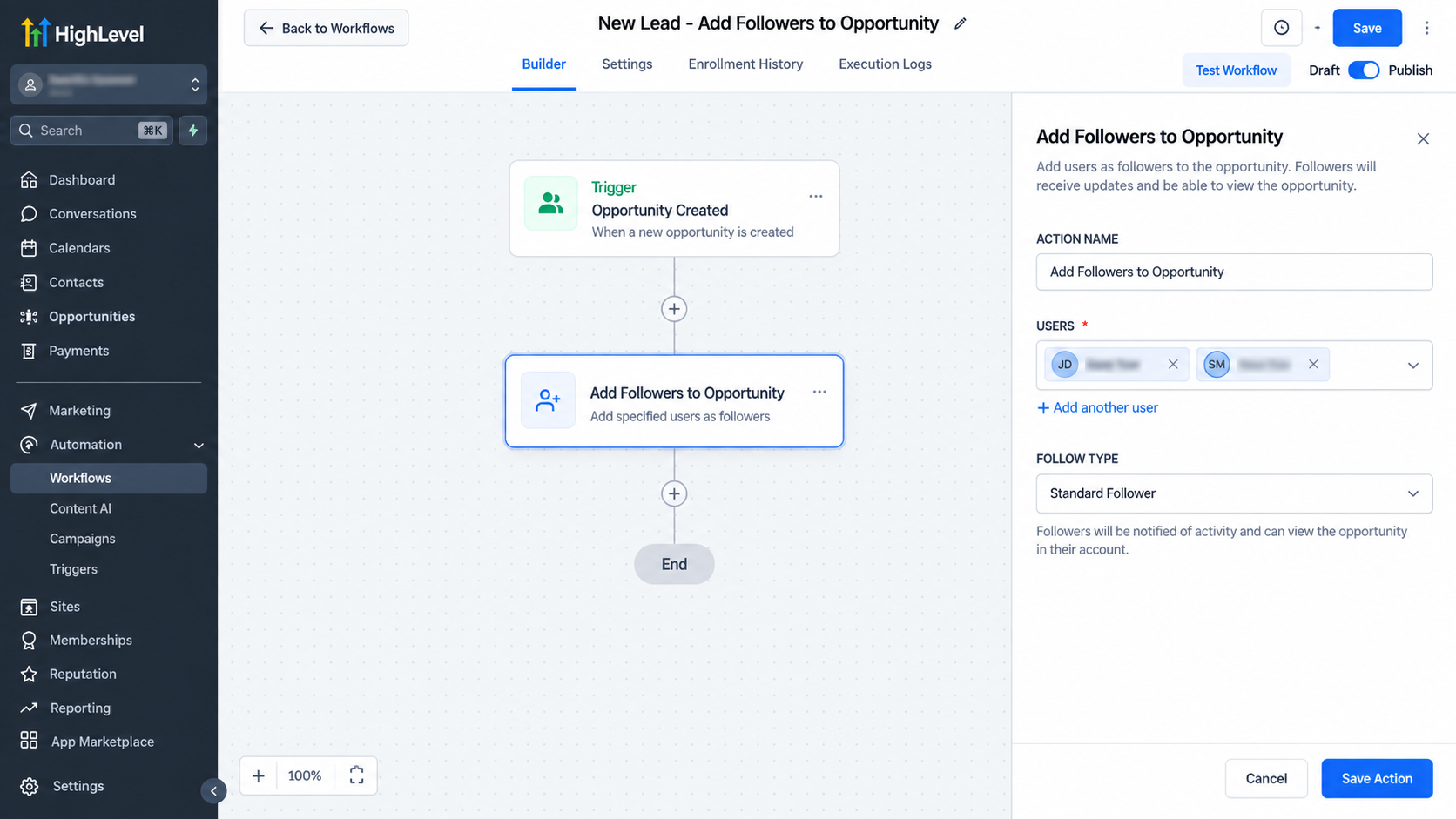
Why Add Followers to an Opportunity?
Opportunity followers are useful when several people need visibility into the same deal while one person remains responsible for it. Common uses include:
Giving a sales manager access to important deals while the rep remains the owner.
Adding an account manager during a handoff.
Involving a technical or service specialist when a deal needs extra expertise.
Giving appropriate users access when Only Assigned Data permissions are enabled.
Adding a follower should not be treated as a notification rule. The action itself does not send that user an email, create a task, or send a message. Those behaviors require separate settings or Workflow Actions.
How to Use the Add Followers to Opportunity Action in GoHighLevel
The workflow must have the correct Opportunity in context.
Open or create a Workflow.
Open the automation where follower assignment should occur.Choose the trigger.
If an Opportunity event triggers the workflow, the relevant Opportunity can already be in context. If the workflow begins from a contact-based event, use Find Opportunity first.Identify the correct Opportunity when needed.
Find Opportunity searches for an existing Opportunity linked to the workflow contact using your filters. If multiple records match, it returns one based on the Earliest or Latest selection.Add the action.
Add a Workflow Action and select Add Follower(s) to Opportunity.Name the step.
Use a clear Action Name, such as “Add Sales Manager as Follower.”Select the Followers.
Choose the user or users to add in the Followers field.Save and test.
Test with a controlled record and verify that the intended Opportunity receives the correct followers.
If no Opportunity is available from the trigger or a preceding Find Opportunity step, HighLevel documents that the action is skipped.
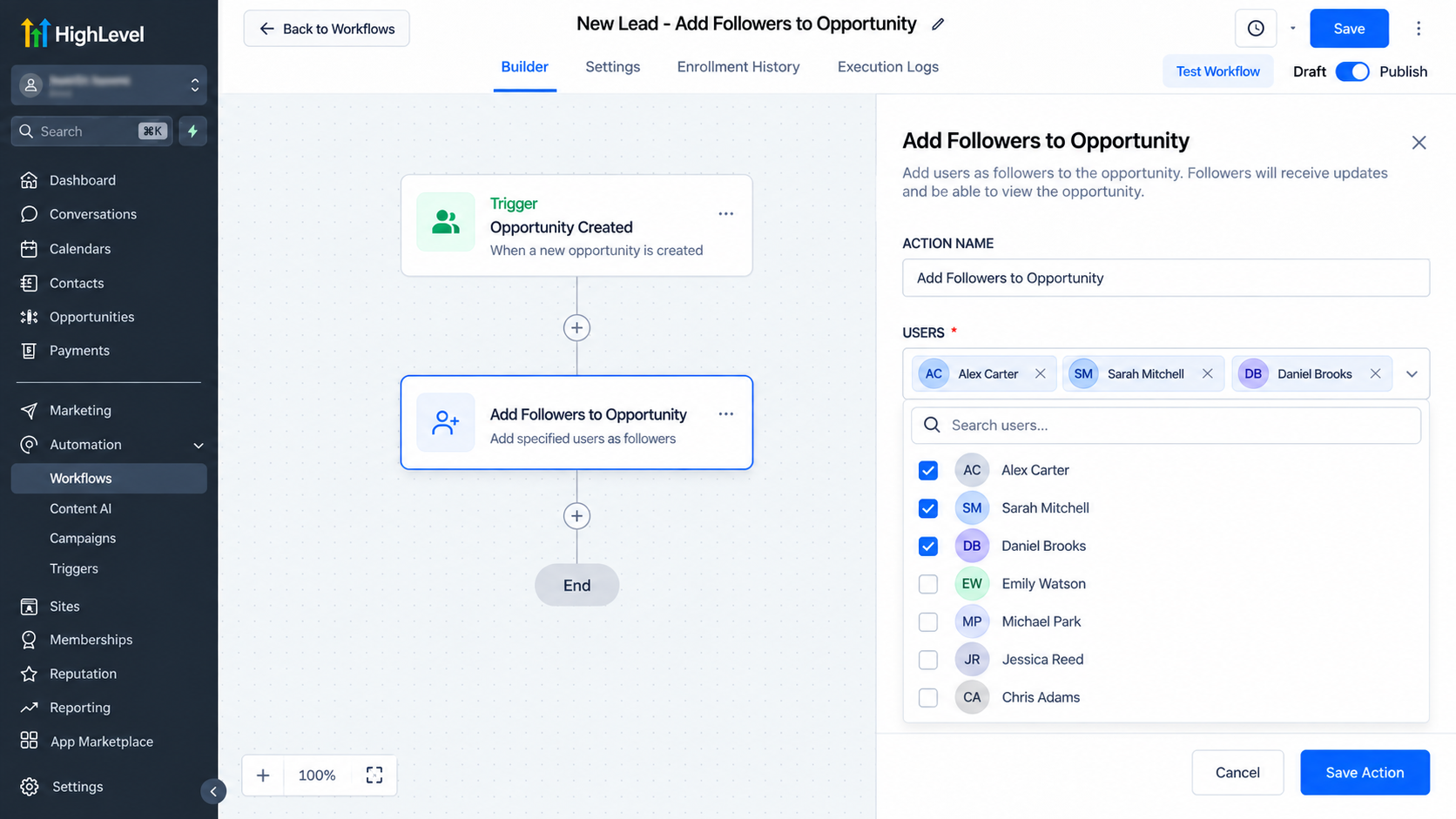
How the Action Fits Into Workflow Automation
A common structure is:
Trigger → Find Opportunity → Add Follower(s) to Opportunity → Continue with other Workflow Actions
This action does not search for, create, move, or reassign an Opportunity by itself. It only adds selected users as followers to the Opportunity already identified by the workflow.
For example, a contact-based workflow can find the latest open Opportunity and then add a sales manager as a follower. With an Opportunity-based trigger, a separate Find Opportunity step may not be necessary.
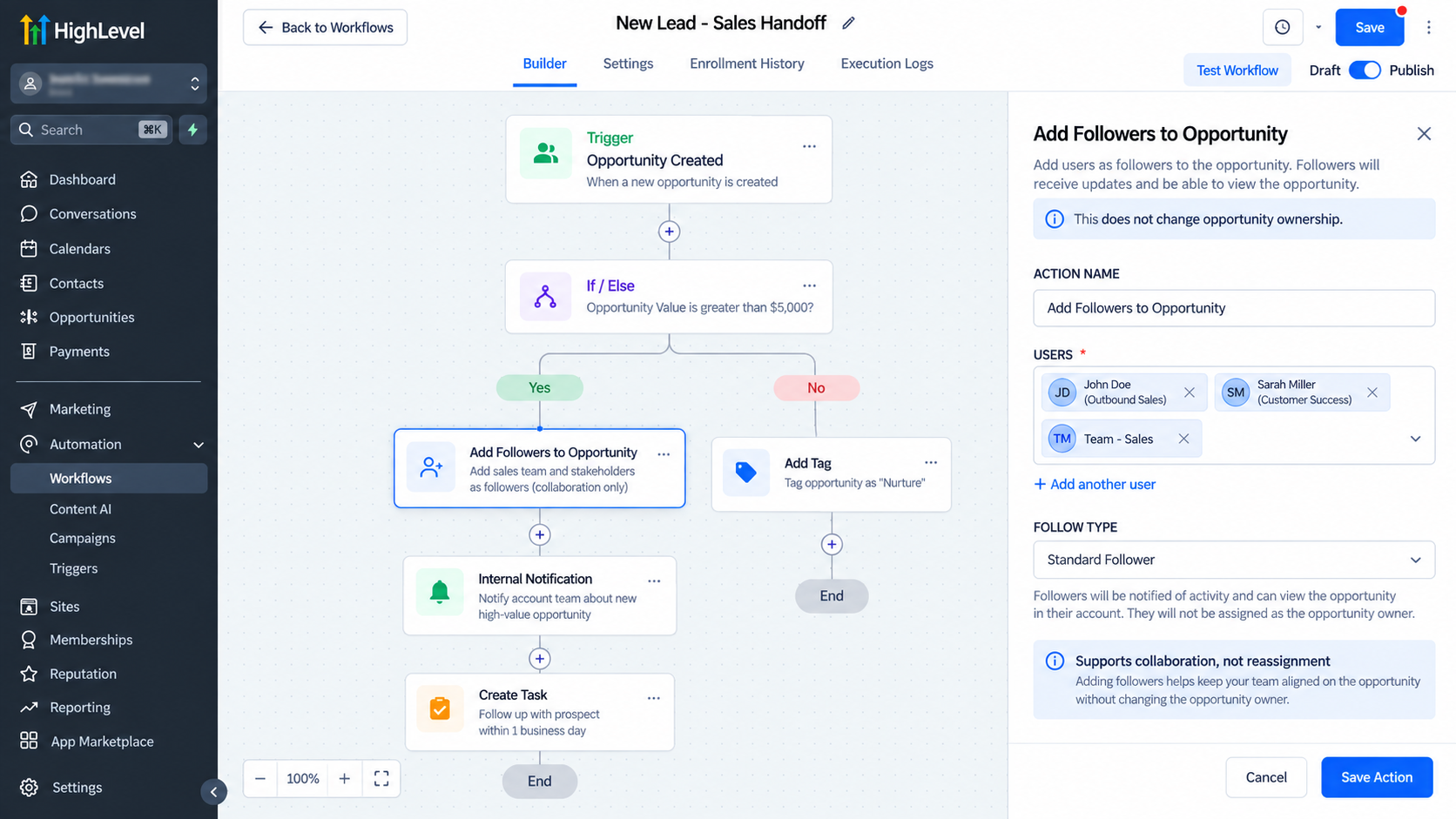
Real-World Use Cases
A sales team can add a manager as a follower when a deal meets defined workflow conditions, improving oversight without changing the sales rep who owns the Opportunity.
During a sales-to-account-management handoff, a workflow can add the account manager as a follower so both users can access the deal while ownership remains unchanged.
A workflow can also involve a specialist when an Opportunity reaches a particular Pipeline Stage. The trigger or workflow logic determines when this happens; the follower action simply adds the selected user.
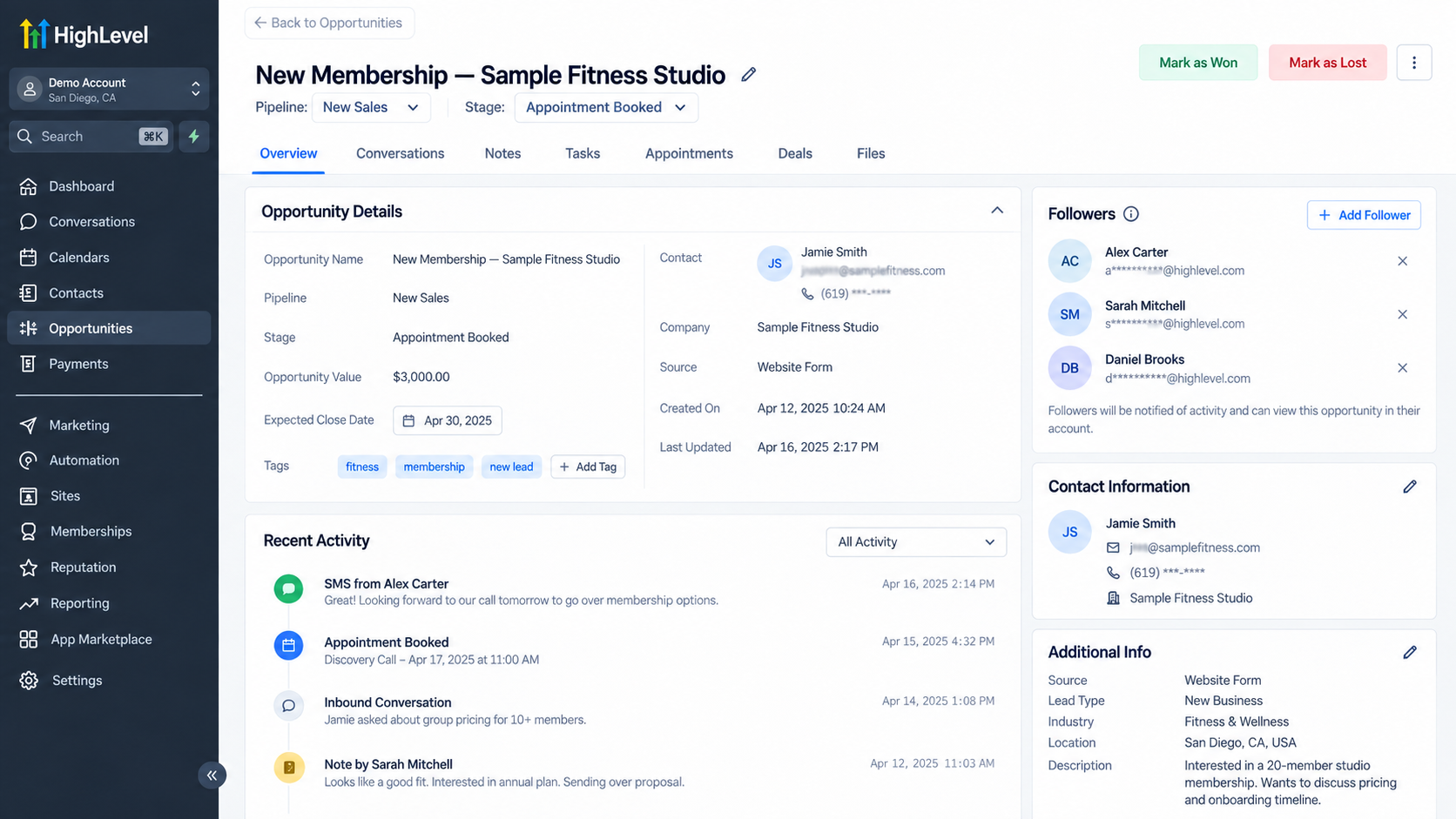
Important Considerations and Common Mistakes
Do not confuse followers with owners. Add Owner to Opportunity changes ownership, while Add Follower(s) to Opportunity adds users for shared access. They are separate Workflow Actions.
Do not assume this action creates an Opportunity. An existing Opportunity must be available in workflow context. If a contact has multiple Opportunities, configure Find Opportunity carefully so the automation targets the intended record.
Avoid unnecessary duplicate follower steps. HighLevel prevents duplicate entries, but simpler logic is easier to maintain and troubleshoot.
Best Practices
Use descriptive action names, keep Find Opportunity filters precise, assign followers based on clear team roles, and test before publishing. Review user permissions, especially when Only Assigned Data is enabled, because follower access still operates within HighLevel’s permission model.
Conclusion
The Add Followers to Opportunity GoHighLevel action is a focused CRM automation tool for adding users to an existing Opportunity without transferring ownership. When used with the correct Opportunity trigger or Find Opportunity step, it can improve team visibility, support smoother handoffs, and keep relevant users connected to active deals.
Used correctly, GoHighLevel Opportunity followers strengthen collaboration while preserving clear ownership and reliable Opportunity management.
Frequently Asked Questions
What does the Add Follower(s) to Opportunity action do in GoHighLevel?
The Add Follower(s) to Opportunity Workflow Action adds one or more selected HighLevel users as followers to an existing Opportunity. It does not create a new Opportunity, change its Pipeline Stage, or transfer ownership.
Is an Opportunity follower the same as the Opportunity owner?
No. An Opportunity owner is the user assigned ownership of the record, while a follower is an additional user who can access and work with the Opportunity according to their permissions. Adding a follower does not replace or change the Opportunity owner.
Does an Opportunity need to exist before this action runs?
Yes. The action works with an existing Opportunity that is already available in the workflow context. If the workflow was not triggered by an Opportunity, a Find Opportunity action can be used beforehand to identify the relevant record. If no Opportunity is available, the Add Follower(s) to Opportunity action is skipped.
Can I add multiple followers to one Opportunity?
Yes. The Workflow Action allows one or more users to be selected as followers. HighLevel's current documentation states that a Contact or Opportunity can have up to 10 followers.
What happens if the selected user is already following the Opportunity?
HighLevel prevents duplicate follower entries. If a selected user already follows the Opportunity, the system will not add that user a second time.
Does adding a follower automatically send them a notification?
The action's purpose is to add the user as a follower; it should not be treated as a notification action. If your process requires an internal notification, email, task, or another communication, configure that separately using the appropriate GoHighLevel Workflow Action.
Need Expert Help with GoHighLevel?
New to GoHighLevel and ready to get started? Buy your GoHighLevel account here and launch with confidence.
Already know what you need and want our team to handle everything, from complete setup and customization to funnels, workflows, automations, CRM, and pipelines? Click here.



